

© 2000, Video Development Initiative
|
© 2000, Video Development Initiative |
brought to you by the
Video Development Initiative
with contributions from
University
of Alabama at Birmingham
Canarie
Georgia
Institute of Technology
University
of North Carolina at Chapel Hill
NYSERNet,
Inc.
University
of South Carolina
Southeastern
University Research Association
University
of Tennessee
William
& Mary
Yale
University
Version
2.0
April, 2000
Shortly thereafter, in 1933, the FCC was formed when much radio and television traffic began to collide. In 1934, the standards wars between companies began with the FCC intervening to establish hearings and approve standards. In 1941 the first analog standard for television, with 4.2 MHz of bandwidth (525 scan lines and 30 frames per second), was adopted. By the 1950's we had 83 channels covering the frequencies 54 to 890 MHz.
 But it was thirty years after that
first AT&T videoconference, before the first videoconferencing product
was introduced on the market. In 1964, AT&T introduced its Picturephone
at the New York City World's Fair. This system, marketed as an exclusive
executive tool, required 1 MHz processing power (considered daunting at
the time) and provided the first data sharing feature. In 1971, the first
transatlantic videoconference occurred between two Ericsson systems (a
product named LME.) And some twenty years later, desktop videoconferencing
clients became available. Intel, PictureTel, and VTEL, names with which
we are still familiar today, were some of the early desktop players.
But it was thirty years after that
first AT&T videoconference, before the first videoconferencing product
was introduced on the market. In 1964, AT&T introduced its Picturephone
at the New York City World's Fair. This system, marketed as an exclusive
executive tool, required 1 MHz processing power (considered daunting at
the time) and provided the first data sharing feature. In 1971, the first
transatlantic videoconference occurred between two Ericsson systems (a
product named LME.) And some twenty years later, desktop videoconferencing
clients became available. Intel, PictureTel, and VTEL, names with which
we are still familiar today, were some of the early desktop players.
Welcome to Version 2.0 of the cookbook. We're delighted that you decided to stop by. If you are new to video conferencing and the cookbook, we hope you find it easy to use and that the cookbook helps ease your entry into one of the newest and most promising uses of the Internet. If you've already read Version 1.0 or are a veteran of video conferencing, we hope that you find the new content here interesting and useful.
Changed material is noted as follows:
 figure
in the title.
figure
in the title. figure in the title.
Applications
This section has undergone major review. Some new material has been
included.
Getting Started
The brief networking and PC selection discussions have been eliminated
since these are now full sections of the cookbook. The component section
has been revised slightly.
Practical Steps
The VCON example has been updated for release 4.01. Application Sharing
scenarios have been added, one for point to point and one for multipoint.
Network Requirements
This is a new section. It describes the typical network connection
needed for good video conferencing. It includes a list of typical problems
seen when the network connection is under configured or experiencing problems.
Tips on who to talk to at your site and tools to monitor your connection
are suggested.
Selecting and Tuning Your PC
This is a new section. Presented in "Dear Gabby" form, it provides
a sort of FAQ on things we've discovered are necessary on the PC side for
good video conferencing.
Advanced Functionality and Management
This section has undergone major review and rewrite.
Related Topics
This section is new though some of the topics in it have been moved
here from other sections. One new topic is "What About Multicast", an overview
of the differences between regular IP and Multicast over IP for video conferencing
along with its strengths and the issues facing its deployment. Another
new topic is "Models for Campus Deployment" which outlines the state of
H.323 deployment, gives several case studies of deployment, and finally
discusses the issues that have affected that deployment.
Glossary
Terms have been updated or added as needed.
Appendices
Summary sections on H.323 and T.120 have been reviewed and updated.
Summary sections on SIP and MGCP/MEGACO have been added. The Experience
Summary has been totally revised. Interesting VC Sites has been updated
with new links to other interesting work as well as with presentations
by ViDe members on video conferencing.
Contributors
This section has been updated to include authors from the Phase II
ViDe group.
Acknowledgements
This section has been updated to include new sponsoring schools and
organizations.
Introduction
How to Use this Cookbook What is Video Conferencing? Who are the Intended Readers? Why are Standards, Openness, and Interoperability Important? What are the Basic Ingredients?
How to Use this Cookbook
The Interface
Since this cookbook is a web document, we should give you a few guidelines on how best to view it. First, this is a framed document. The left-hand frame contains a general table of contents. Clicking on any item in this list will cause the content in that section to come up into the main frame on the right-hand side (where you are probably reading this now.)Secondly, this cookbook has been developed to work with Netscape Navigator 4.0+ and Internet Explorer 4.0+. Some aspects of the interface may not work with earlier versions of these browsers. It has been designed to work best with a 17 inch monitor. If you are using a smaller monitor, scroll bars will appear in several of the frames. Your window should be resized as large as possible before loading this document. Sizing afterwards can cause formatting problems.
You will notice that the bottom frame contains a number of buttons.
This button will load a printable copy of the cookbook in a separate browser window. These buttons will allow you to move back and forth in the cookbook sections. This is not the same back and forward as the window history back and forward. The window history can be accessed, as usual, with the browser commands within the main content window. This button will load a more detailed table of contents in the main window. This button will load the glossary of terms into a separate browser window. Using a separate window allows you to look up terms as you are reading cookbook content. We intend to expand and improve this document in future versions. We would like to hear your comments and suggestions. This button will load a feedback form in a separate browser window. Lastly, the bottom frame contains copyright and contact information. You can easily reach the cookbook editor by clicking on the link.
The Content
The early or novice user will find the first six sections (Introduction, Applications, Getting Started, Practical Steps, Network Requirements, and Selecting and Tuning your PC) of this cookbook useful. They will introduce you to ways to use video conferencing and tell you how to get started.More advanced users of video conferencing will probably find the next two sections (Advanced Functionality and Management and Related Topics) more interesting. They will tell you how to better evaluate components and how to move on to larger conference groups.
Early integrators may want to review all sections of this cookbook to prepare yourselves for likely needs within your community as well as to introduce yourselves to the types of equipment you will be asked to support.
We hope everyone will benefit from the information contained in the glossary, appendices, and bibliography.
Version 2.0
This cookbook has undergone one revision. The Version 1.0 content was updated as needed. Several new sections were added including Best Practices, Video Conferencing Etiquette, Network Requirements, Selecting and Tuning Your PC, And What About Multicast, and Models for Campus Deployment. Advanced Features and Going Further were reorganized into Advanced Functionality and Management. The Experience Summaries have been reformatted.Major revisions will appear in a shaded box, as is this text.
What is Video Conferencing?
Video conferencing in its most basic form is the transmission of image (video) and speech (audio) back and forth between two or more physically separate locations. This is accomplished through the use of cameras (to capture and send video from your local endpoint), video displays (to display video received from remote endpoints), microphones (to capture and send audio from your local endpoint), and speakers (to play audio received from remote endpoints). Although there are many factors that serve to modify or increase the complexity of this basic definition (several of which are discussed in this cookbook), it is useful to keep the concept simple in the beginning when deciding why or how you may be able to use video conferencing for yourself or your organization.In understanding the role that video conferencing could play, consider two general situations: a) those where you are already able to communicate with someone who is not physically nearby, but you wish that communication could be richer, and b) those where you wish to access or communicate to a location that may or may not be nearby but is limited by situational or physical constraints. Distance education often comes to mind first when considering the former situation, but several other existing types of communications can also be enhanced or extended. These include organizational and cross-organizational meetings, counseling, foreign language and cultural exchanges, and telecommuting. Communication is already occurring in each of these applications, but they could be made more compelling, more effective, or less expensive via video conferencing. (Imagine a telephone call where you can see the speaker, or a television through which you can talk.) For the latter situation, the introduction of video conferencing has enabled communication to restricted areas such as clean rooms, nuclear facilities, operating rooms, and the space shuttle. It has been used to observe wildlife in their natural habitat, to establish interactive surveillance and security, and, combined with micro-instrumentation, to observe inside the human body. This side of video conferencing may not come to mind as readily as the enhancement of simple communication but it can be quite powerful. Simply imagine situations where you might like to be a "fly on the wall", with the ability to interact if desired. To imagine even further, consider that video conferencing can be point-to-point (between two endpoints), or multi-point (combining two or more endpoints into the same "conversation"). When you begin to combine diverse endpoints into one setting where audio and video from each can be shared in real-time, whole new levels of interaction are enabled and entirely new ideas for communication can result.
Once you determine that video conferencing is for you, you need to be aware that it is not currently a "plug-and-play" technology. Video conferencing actually began over a decade ago with the introduction of expensive group conferencing systems designed to send and receive compressed audio and video over network connections that could guarantee a dedicated rate of transmission and predictable service (i.e., point-to-point T1 or fractional T1 communication links, or switched connections using ISDN). Standards surrounding how the audio and video would be compressed, how the endpoints would communicate with each other (i.e., initiating/terminating calls, negotiating audio/video compatibility, indicating error conditions during a call), and how the video streams would travel over the network eventually evolved, but systems were not fully interoperable at the start. Still, evolution persisted and useful video conferencing using what is today called the H.320 standard did finally emerge. However, this also meant that video conferencing was restricted to a) those who could afford the technology and network connections to establish meeting rooms, and b) those who were able to travel to a video-conference enabled meeting location.
As time has gone on, the above restrictions have changed. Technology for conducting video conferencing has become less expensive, more flexible, and now includes options for desktop video conferencing as well as group video conferencing. More ubiquitous network types, particularly TCP/IP as used on the Internet, are being called upon to provide less expensive and more flexible connections. In conjunction with this, a new ITU (International Telecommunications Union) standard has emerged for supporting audio/video conferencing over IP. This new standard is called H.323 was first approved by the ITU in 1996. Since then, the standard has evolved through additional versions and also been implemented in multiple vendors' products. Those products will be the focus of this cookbook, which will also touch on many other factors required for a thorough understanding of video conferencing. These include the importance of standards, video conferencing needs assessment, application possibilities, basic equipment selection and use, and advanced components and services. It is both hoped and anticipated that this cookbook will help you to move from imagining what you might do with video conferencing to a successful and effective video conferencing deployment. Who are the Intended Readers?
This video conferencing cookbook has been prepared for academic and research users on advanced IP networks around the world. We feel that the span of that topography and experience will make the cookbook valuable to any academic institution desiring to implement video conferencing for local, state, regional, national, and international communications.The application examples here are targeted towards the academic and research community in particular and include meetings (one-on-one to many-on-many), classes, and collaboration. The audience levels will range from the beginning user of video conferencing to the intermediate/advanced user of video conferencing to the new organizational integrator. It is expected that the beginning user has operational skills on a Windows type of workstation, including general software installation skills. It is expected that the new integrator has knowledge and skills relating to their local and extended networks as well as general server-asset support.
In attempting to analyze the audience attitudes toward video conferencing, it is acknowledged that attitudes will range from excitement and abandon to caution and order to even skepticism and apprehension. The expectations of video conferencing are likely to range from top end audio and video ("Why, it's like you're right across the table!") down to good audio with passable video ("Is that a new hair-do or is your camera malfunctioning?")
For the beginning user the objective is to familiarize you with the concept and uses of video conferencing. To that end we will lay out a potential strategy for selecting and purchasing a video conferencing product, suggest steps to follow in learning the use of the product, and share ideas about how to introduce the product into your professional life.
For the intermediate user the objective is to bring out new ideas for your use of video conferencing and to familiarize you with some advanced features and enhanced components for video conferencing.
For the new integrator the objective is to familiarize you with potential uses of video conferencing at your site, to introduce the different components and services which will be required to support those uses, and to share experiences and shortcuts for such support.
Why are Standards, Openness, and Interoperability Important?
H.323 is an International Telecommunications Union (ITU) standard for video conferencing over IP. It is an umbrella standard that specifies mandatory and optional requirements in several areas to enable a complete "call" or communication sequence. The standard also defines four major components that may be part of the call - terminals, gateways, gatekeepers, and multi-point control units. The reason for the standard is to enable interoperability between different vendors' implementations of these components. As is the case with all standards, there is a danger of either over-specification or under-specification. If the standard is over-specified, it may become difficult to implement in the form of a cost-effective product. If the standard is under-specified, there may be room for different interpretations that lead to equally compliant yet non-interoperable implementations. Version 1.0 of the H.323 specification left significant latitude for vendor interpretation. This latitude enabled wide differentiation in the marketplace but led to poor interoperability among early products. Subsequent versions of the standard are addressing this issue by becoming more specific in key areas but interoperability between vendor implementations remains an issue as does interaction of the various H.323 components across the Internet vs. an intranet. Fortunately, market forces have resulted in several strategic partnerships among video conferencing vendors which will tend to increase interoperability in this arena. In some cases vendors have sought to acquire complementary products in order to offer complete "turnkey" solutions. In others, joint ventures have been formed to assure interoperability within a broader product line.
We are still at the early stages of the H.323 lifecycle. While the specifications paint a picture of seamless conferencing over the Internet, today's reality is uneven interoperability among H.323 products most reliably suited for intranet deployment. As the standard evolves through future versions (version 2.0 was finalized December 1998; version 3.0 is in process) and as product cycles have time to reflect that evolution, this situation should improve.
What are the Basic Ingredients?
H.323 Video Conference Recipe
(serves 2 but may be increased with a proportionate increase in ingredients)
2 Video conferencing pioneers (choose only hefty ones with plenty of positive attitude and patience.) 2 Video conferencing terminal end stations (often called clients; can be of same or different vendors as long as H.323 compliance is verified.) 2 Peripheral sets, including camera, microphone, and speakers. 2 Workstations (probably of the Windows variety though a few Mac and Unix terminal end stations may become available in specialty shops.) 1 High speed network connection (at least 128Kbps.) 2 IP addresses for workstations. 1 Multipoint Conferencing Unit (MCU) - optional. Attach IP address to associated workstation. Combine one pioneer, one workstation, one terminal end station, and one peripheral set at each end of network. Open user interface window on each terminal end station. Adjust camera on each end. Arrange microphone and speakers for best sound and least feedback. Have first pioneer find the dialup dialog window of their terminal, type in IP address of other pioneer's workstation. Hit the associated "dial" button. Say hello and enjoy!!
Uses of Video Conferencing
Determining Your Needs
General Uses
Meetings
Classroom
Collaboration
Special Applications
Telemedicine
Telecommuting
Judicial Applications
Remote Laboratories
Campus Surveillance & Security
Determining Your Needs
The H.323 standard supports applications ranging from a single person-to-person voice-only call to a multi-party interactive conference employing voice, video, and data. Knowing as much as possible about your current and future needs will help you to determine how much money to spend on equipment and to select equipment will help carry you into the near future. It is important to consider equipment that will upgrade and/or scale to the near future without the requirement of replacing it at each step. The following will help you in assessing your conferencing requirements:
- Number of conference participants - Conferencing between greater than two participants will require use of a multipoint control unit (MCU) or multicast network services.
- Environment of the participants - Potential environments include desktop, conference room, or auditorium. Will conferees be meeting from their desktops or will a few, small conference rooms be combined into a larger, "virtual" conference room?
- Gateways - Is there a need to talk with non-homogeneous endpoints, such as conversion from H.323 (TCP/IP) to H.320 (ISDN) and visa versa.
- Degree of interactivity - How will the meeting be held? Will there be a single main speaker, as in a classroom environment, or will a productive meeting require that the participants be able to speak to other conferees freely and spontaneously?
- Role of voice, video, and data - Is voice transmission sufficient? If video is required, must participants be able to see detail or is video used only to maintain presence? Will graphical materials be exchanged and must participants be able to collaborate using the same application?
Number of conference participants If there will be more than two participants in a video call then there are two choices for handling the interaction: using an MCU or using multicast. In the case of the MCU, choices must be made about budget and network. MCUs can range from moderately priced software-based MCUs (several thousand dollars to twenty thousand dollars) and hardware-based MCUs (from fifteen thousand dollars to over two hundred thousand dollars.) It is important to remember that software MCUs rely on host computers that must be fast enough to keep up with all of the video streams in the conference and that the load on the computer increases with the number of people in a conference. Stability and support of the host system should also be taken into account.
Networking infrastructure is a major concern when it comes to hosting an MCU. For every person participating in a conference on an MCU, bandwidth is taken out of the total network where the MCU is hosted. For instance, if ten people were conferencing at one time at 384Kbps, it would require a total of 7.680Mbps. This would load down a typical 10Mbps LAN and further consideration would have to be given to any participants that are conferencing from the Internet or WAN links. For a site with T-1 connectivity, there would only be room for two (at most four) Internet clients to connect.
Multicasting is an appealing option from a price perspective and a networking point of view. Multicasting a multipoint conference eliminates the need for an MCU and frees the network of a concentrated point of multiple single connections. There is only one network connection between any two routers in a multicast multipoint conference. But this assumes that a multicast conference can be hosted in the first place. Multicasting to the desktop still seems to be facing a number of issues which are slowing down deployment. In order to be able to have a multipoint conference, make sure ahead of time that each participant will have multicasting capabilities. If one of the end points does not have that capability then other means of communicating will have to be made (such as tunneling a unicast connection to the multicast network.) See What about Multicast for more detailed information on how multicast works.
Environment of the participants
For one to three individuals conferencing from a PC, a desktop unit with an inexpensive camera will suffice. Close proximity to the camera is the key here. If there is a need to show other objects in the room or to control the camera from a distance, then a pan/tilt/zoom (PTZ) camera can make a big difference. A camera that can autofocus and can be controlled remotely will enable details of objects to be increased as needed. For conference rooms and auditoriums, a PTZ camera is a must. A second, and equally important, consideration for the environment is the set up of microphones and speakers. For one individual at a PC, a headset for use as a microphone and speakers may be ideal as this eliminates any echo commonly found in desktop systems. For systems with little echo (i.e. one that has built-in echo cancellation) using the supplied microphone and speakers will be sufficient. For systems that have poor or no echo cancellation, a noise-canceling speakerphone can usually be purchased as a separate item (and is well worth the money for hands-free operation and if more than one person will be in the conference). For conference rooms, multiple remote microphones may greatly enhance the quality of the conference. Having several desktop microphones for a conference table of several people will prevent the need for shouting during a conference. These types of microphones may or may not require that the user activate the microphone to speak. See Best Practices for the Audio and Video Environment for more information.
Gateways
Gateways are a necessity when a conference is to be held between two or more clients using different protocols. For example, if one client uses only H.323 protocol and the other client uses H.320 protocol, then a gateway is needed at one end to handle the conversion. The location of the gateway depends on several factors. The client using H.320 protocol may opt to have the gateway at their end since this would eliminate long distance charges on their ISDN lines (which would quickly add up for each pair of phone lines.) On the other hand, the H.323 site may have a frequent need to communicate with H.320 sites or there may be times when the H.320 sites don't have the services of a gateway available to them. While the H.323 site may incur long distance charges, it may be unavoidable and worth the money. Gateways are also a practical way of bringing in calls from regular telephone systems (POTS). For example, if someone is on the road on their wireless phone, they can still participate in a conference via a gateway which bridges them into the conference. See Advanced Functionality and Management -- Gateways for more information.
Role of voice, video, and data
Voice quality should, and usually does, take precedence over video during a conference. A conference is unsuccessful if one of the voices is not clearly audible. Usually 16Kbps to 64Kbps is used in the audio portion of a videoconference, depending on the audio codec used. 64Kbps transmission gives a higher quality of voice since the level of compression is not as significant as in the 16Kbps transmission case and will have a wider dynamic range (though this is not always the case as improved 16Kbps algorithms are now in production.) As mentioned before, when video detail is required, then pan/tilt/zoom cameras are a must for a quality conference. If the video is used only to maintain presence, then a more inexpensive camera should suffice for "talking heads" type conferences.
Text and graphical material exchange requires the use of application sharing features (often termed "T.120 support" after the standard itself.) There is usually a fixed bandwidth for this, just like the audio and video, thus the transmission times for sending and receiving data should be predictable. Generally, application sharing is one-way or simply a "view" of the application being run on one workstation in the conference. If participants need to be able to "collaborate" (that is, execute the application together), some attention may need to be given to the enabling of collaboration on the T.120 implementation. Generally, application sharing is enabled separately from data collaboration to reduce the chances of security breeches or accidental destructive behavior. It is important to remember that when an application is being collaborated, all people in the conference have full control of that application, just as if they were in front of that computer; anything the local user can do with the application so can the remote participant. See Best Practices for the Audio and Video Environment for more information.
General Uses
- Meetings
Facilitating attendance at meetings is one of the simplest yet most popular uses of video conferencing. For meetings that already regularly take place and require face-to-face communication, video conferencing can substitute for the actual physical presence of remote participants. This reduces travel costs as well as travel time and makes meeting attendance more convenient. It can also make meetings more likely to occur. Frequent and/or ad hoc meetings that might not have been scheduled due to travel costs and timing can be enabled via video conferencing and enhance the sense of teamwork among people at different locations but working on the same project. Video conferencing provides remote participants with much of the face-to-face familiarity that comes with physical presence, including elements of facial expression, body language, and eye contact. If video conferencing is readily available on individual desktops, the cohesive effects of this enhanced communication can be even greater. Collaborative work can then be enhanced further through the integration of video conferencing with collaborative electronic tools (data transfer, shared whiteboards, shared applications.) These will be discussed later in this section.In considering the use of video conferencing for meetings, it helps to think broadly about what a "meeting" really is. In the following illustrations, meetings that include video conferencing are shown as instances of one-to-one, one-to-many, and many-to-many communication.
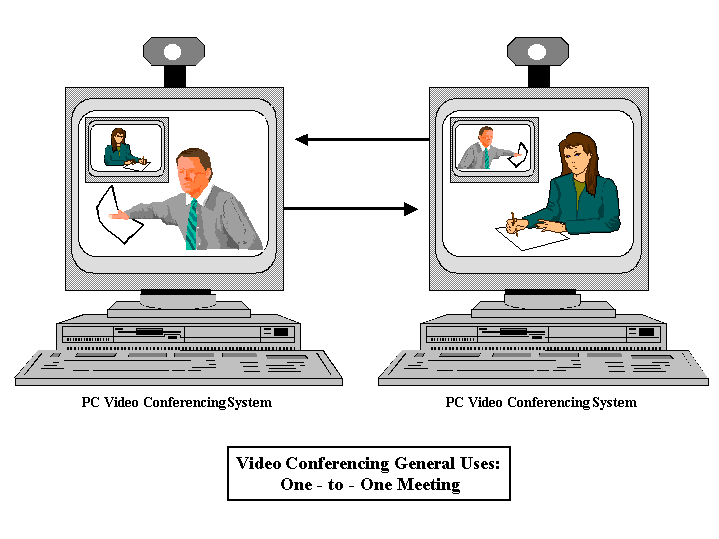
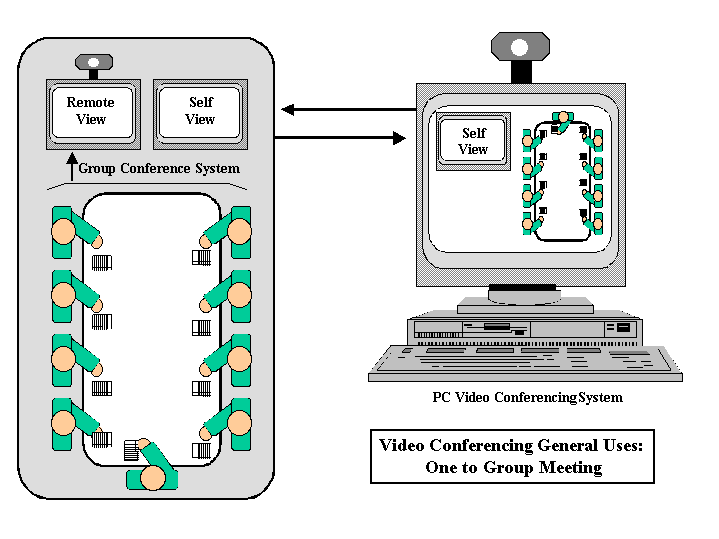
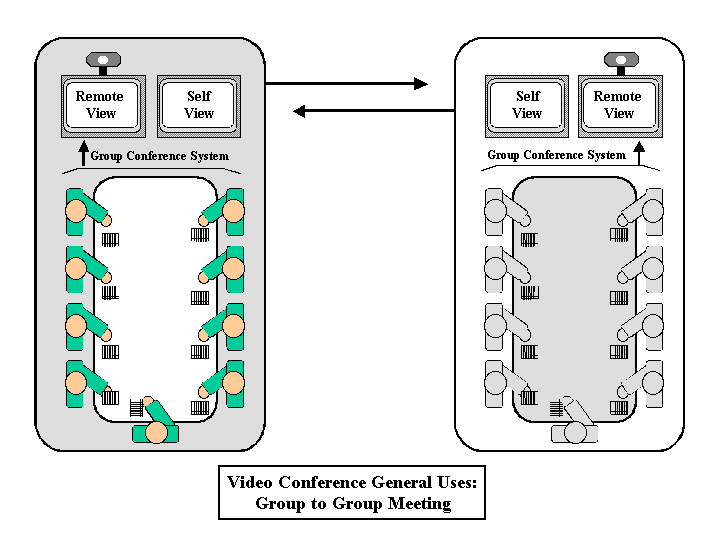
In each of the above cases, the quality of the audio and video are critical to the success of the remote participation. Both will effect whether or not the remote participant(s) feel like they are truly part of a meeting (not just an observer) and also whether or not they are treated as part of the meeting by the other participants.In the specific case of a multi-point meeting -- where more than one location is participating remotely, several factors affect the success of the remote participation. These include the view participants have of each other, how well participants can hear each other and be heard by each other, and how participants determine who is leading the meeting or "has the floor" at any given time. Features for controlling these factors are discussed in greater detail in the Advanced Features: MCU (Multi-point Conferencing Unit) section of this cookbook, but are previewed below:
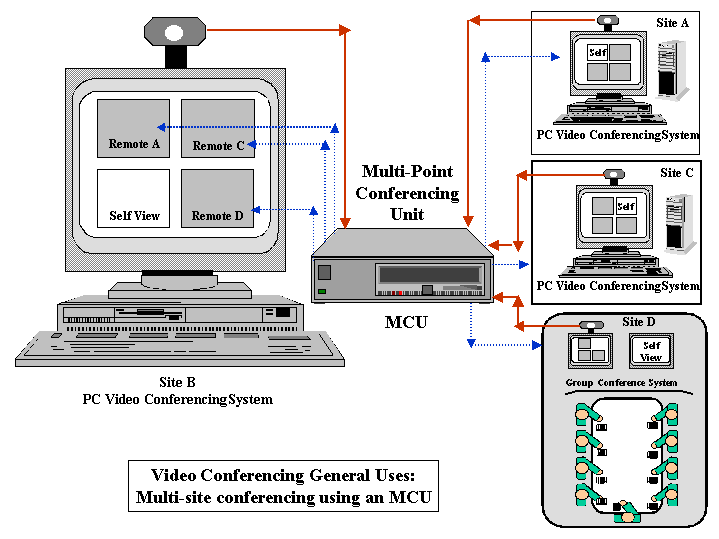
What participants see may be:
- Voice Activated - where the incoming video from the current speaker's location is displayed to all other sites.
- Continuous Presence (sometimes called "Hollywood Squares") - where each location can see all other locations (or a selected subset of all locations) at the same time.
What participants hear may be:
- Half duplex audio (sometimes likened to "walkie-talkies") - where participants can only hear one speaker at a time (audio from the dominant speaker's site suppresses audio from all others) and must indicate somehow when speaker control should be passed.
- Full duplex audio - where audio is "natural" in the sense that everyone can hear everyone else at all times.
How meeting control is achieved may be:
- No Control: where full-duplex audio is continuously available from all sites and people can "talk over each other". In this case, the lead speaker is determined by general consensus of those present, just as in a physically proximate meeting. (The view of participant sites would still be either continuous presence or voice-activated).
- Chair Control: where a feature is included in the video conferencing technology (either at the terminal endpoints or in the MCU) to pass chair control via some designated mechanism ("electronic hand raising.") The site possessing chair control is seen and heard by others until chair control is passed.
- Lecture-Style: a variation on Chair Control where one site is designated as the lead site and can enable/disable Chair Control access by other sites as well as enable/disable other sites from being heard, or being viewed.
As with any new technology, successful integration of video conferencing into existing activities requires attention to the needs of the people who will be using it. The determination of what is acceptable and useful must be based on the reaction and comfort level of the end users. In the case of simple point-to-point meetings, there is not a lot of new learning required for participants to successfully interact with each other as long as the video and audio quality do not interfere. Care should be taken to ensure that participants feel they can see and hear each other clearly. More information is available in later sections (see Practical Video Conferencing Steps and also Appendix 1: Preparing Your Room for Video Conferencing), but typical "rules of thumb" include:
- Microphones should be of sufficient quality to pick up the speaker's voice naturally (in terms of volume and physical position) and without excessive background noise.
- Microphones and speakers should be positioned so that they do not cause feedback and interference with each other, such as when the microphone picks up the sound from the speakers. Using directional microphones will also help limit the interference.
- Camera quality should be good enough to capture an acceptable image (test with users at the remote site to see how you are coming through) and cameras should ideally be auto-focusing and should auto-adjust for lighting conditions so that participants do not need to adjust them while conferencing.
- Speaker volume and camera position should be user-adjustable, or have proven acceptable auto-adjusting ability but with the ability for the user to override.
- Displays for incoming video should be positioned as naturally and comfortably as possible for inclusion in the meeting and enable/encourage eye contact.
- Any conference controls that do not duplicate natural conditions (i.e., voice activation in multi-point conferences) will need to be introduced to users -- ahead of time since they may need time to practice to become comfortable and effective using them..
Attention paid to the total "look and feel" of the meeting scenario prior to conferencing helps to ensure that the technology will enhance rather than detract from the success of the meeting.
Classroom
A particularly exciting type of "meeting" that may be enhanced and expanded through the use of video conferencing is classroom instruction. Certainly all of the factors listed above for furthering the success of video conferencing within general meetings affect the classroom as well. In addition, the introduction of video conferencing into the classroom means that at least some things about the nature of the instruction necessarily have to change. In one case, remote participants may be additional students that the instructor must now accommodate in terms of instruction and try to integrate with any physically-present participants into one virtual student group. Remote participants should not feel that they are getting less out of the class than their physically-present counterparts and physically-present students should not feel that the presence of remote students is detracting from their instruction. In another case, remote participant(s) may be additions to the instruction itself, such as expert speakers, or co-instructors. As with any team-teaching, a cooperative balance of instructional duties is required but this can be made more complicated if video presence cannot compete with physical presence. For instance, instructor accessibility in the physical classroom can easily overtake the presence and command of the remote instructor, encouraging side conversations and inattention to remote instruction.Yet another aspect of video conferencing in the classroom is that the "participants" being shared via the video conference connection might not always be human. An instructor may want to incorporate an alternative video source (e.g., a document camera, a VCR) for sending to remote locations, or may want to receive video from an alternative video source at the remote site. The potential for combining video inputs and outputs can seem endless and readers are encouraged to fully explore these options when evaluating video conferencing equipment for use within a classroom. Two of the most typical classroom scenarios are illustrated below:
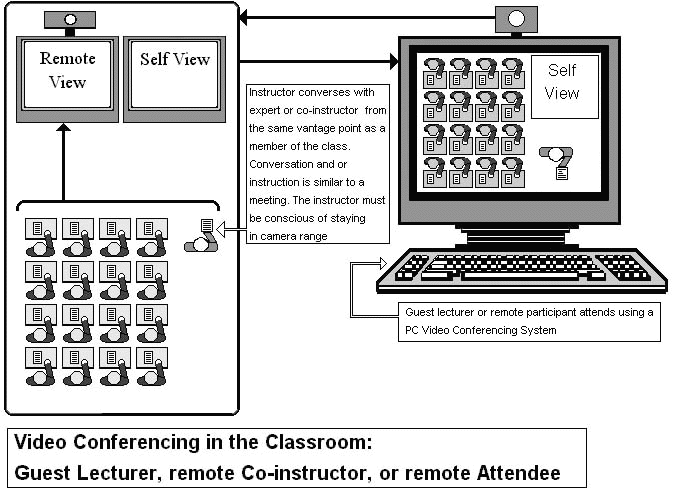
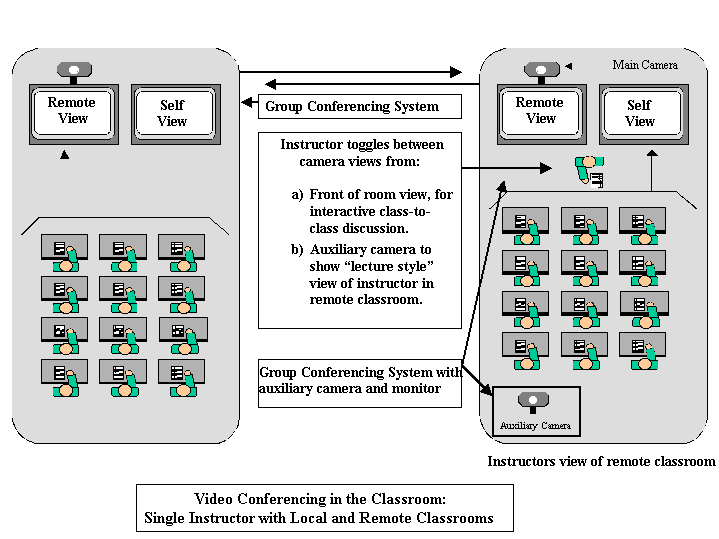
Most importantly, use of video conferencing in the classroom requires special attention to the comfort level, teaching style, and instructional techniques of the instructor. In the ideal world, preparation for the use of video conferencing in the classroom would be minimal. However, today's reality dictates that there will have to be some adapting and learning on the part of instructors to use video conferencing successfully for instruction. Practice time outside of actual class time must be available and utilized to effectively integrate the technology with their own instructional style and methods, thereby ensuring a natural flow of classroom activities by the time the technology is experienced by the students.Collaboration
As the previous sections describe, video conferencing can be used very effectively for meetings and classes. Travel costs and stress can be reduced while personal interaction can remain high. More people can be reached with knowledge and information when video conferencing is used in the classroom. This section will describe going one step further and actually collaborating within documents and applications that are being shared over the network.A video conferencing terminal will generally come with a number of software tools including electronic whiteboards, ftp, and chats. The whiteboard can be useful for dynamic lectures, collaborative diagramming, brainstorming, and sharing notes. Ftp can be used to transfer files quickly without the need for a separate operating system window. Chat can be useful when audio quality is poor or unavailable for some participants or when a subset of participants needs to communicate privately. An interface is also often provided to enable sharing of third party applications that may be installed on participating workstations. This is particularly useful when group work is supported by project-specific software applications. Communications between the terminal end stations -- while they are sharing these tools and applications -- must be standardized to ensure the highest level of access and accuracy. This communication is supported by the ITU standard, T.120. As stated in the DataBeam Tutorial on the T.120 Series Standard,
"Established by the International Telecommunications Union (ITU), T.120 is a family of open standards that was defined by leading data communication practitioners in the industry. Over 100 key international vendors, including Apple, AT&T, British Telecom, Cisco Systems, Intel, MCI, Microsoft, and PictureTel, have committed to implementing T.120-based products and services."Two terms often heard in discussions of T.120 are application sharing and data collaboration. The distinction here primarily revolves around who has control of material. In application sharing, the owner of the material is allowing the other participants to view it only. In data collaboration, the owner of the material is sharing both the view and the ability to modify the material. We will illustrate the use of these through several examples.Video conferencing terminals that support application sharing and data collaboration do so through buttons or pull down menus. In most cases, a button will be clicked or menu item selected while the relevant application window is active. The process is very simple. A mouse click will be assumed in these examples.
Lecture - Large Class - You are an instructor who has the need to present material from a presentation, web page, or other application that you use to deliver course material. In this case (say it is a large group coming from several distributed sites), you simply want to present the material in one direction. So after activating the window, you simply click on the application sharing button. The material immediately shows up on the screens throughout the conference. As you navigate through the lecture, each screen changes to follow. (Note: it is not necessary for the application to be resident on the receiving machines.)
Lecture - Small Class - This case is similar to the one above except that you are working with a much smaller class. In this case, you might want to have more than just video and audio dialog between yourself and the students (and student to student.) Perhaps you'd like to include some problem solving aspect to the class. You might bring up an electronic whiteboard or other application and start up data collaboration so that each student might present their ideas on a topic or solutions to particular problems.
Presentation Planning - You are an educator, scientist, engineer, technologist. You have been working on a project with others in your field who are separated by quite some distance. Several of you are doing a team presentation so you would like to prepare your slides together. After activating the call between the presenters, one of you will bring up the presentation software and click on the button for application sharing (if only one person will be typing) or data collaboration (if all of you will be entering material.) You are able to discuss the material, analyze the potential audience, schedule each section in your face-to-face dialog. As you agree on layout and topics, you can enter them directly into the presentation.
Proposal Preparation - You are an information technology director who is working with another information technology director at a different school. The two of you are proposing a joint project in educational technologies over advanced networks. You are preparing your material in your favorite publication software. After activation of the call, one of you will bring up the document and click on the data collaboration button. The document will appear on the other director's screen. Each of you can now type into the document. Control is transferred back and forth simply via mouse clicks. Changes will appear on each screen.
Student Projects - It is very common to assign group projects, particularly in higher level classes and as term projects. This is a good team building strategy which allows the students to tackle larger problems and learn from each other. As long as the students have been located at the same campus, or reasonably close by, this works well. While application sharing and data collaboration could still be used locally (say for those night owls who don't want to drive late at night), a great deal of diversity can be added to the project if the students are in separate locations. Students in environmental studies might be teamed together from diverse locations such as a coastal environment, a mountain environment, a desert environment, etc. The students can use data collaboration to prepare their final reports, run data analysis for all to see, etc.
Scientific Research - You are an engineer and you are studying aircraft wing design with several colleagues who are distributed around the country. You have implemented a large scale application on a parallel computing system at one of your sites (actually, it could be anywhere on the network!) The person at that site can begin the application and click on data collaboration so that each of you can interact with the model as it runs and see the results as they happen. You are also using CAD software (which runs in an X-Windowed environment) to analyze the output further. One of you will start up the CAD software and click on application sharing. All of you can then view the structures and discuss what happened, what to try next, etc.
These are but a few examples of the diverse uses of video conferencing for collaboration. In thinking of your own scenarios, consider aspects of your project work or instructive activities where data is being passed back and forth in the form of file or document transfer but is currently being acted on or viewed individually. If manipulation of this data is really intended to support the development of a common product or understanding, these are aspects of your collaborative work that may be enhanced through application and/or data sharing.
Special Applications
- Telemedicine
Telemedicine is a rapidly growing field which, in large part, is made possible by the development of videoconferencing technologies. Health care is one of the largest sectors of the American economy, and any way to provide cheaper or better care is in demand. Videoconferencing can be used many ways in telemedicine, from inexpensive low-end desktop systems to high-end room based systems.One application currently being used in many rural areas is for remote clinical diagnosis. In this scenario, a rural doctor consults with a doctor in a metropolitan or university hospital. This allows the remote doctor to see the patient, talk with the local doctor, examine data, and in some cases look at radiological data. This application typically requires a high-end system with high data rates and traditionally a T1 phone line or several ISDN lines. This can be very expensive. For example, several Southern states run their own statewide telemedicine system linking hospitals, rural clinics, prisons, nursing homes, and more. These systems have proven to be cost-effective, even though the equipment cost per site has traditionally been more then $100,000. Using new H.323 videoconferencing systems may lower the costs significantly for use in this application, allowing for widespread deployment in more rural and urban areas.
Another emerging application for telemedicine is home health care delivery using a variety of technologies, including videoconferencing. In these applications, a number of patients who are undergoing treatment for chronic conditions might be sent home with a PC based telemedicine system. This system will connect back to the hospital or doctor's office via a high-speed connection such as ISDN, ADSL or a Cable Modem. The system will combine various medical diagnostic devices, such as pulse oximetry, ECG, or Doppler ultrasound with a videoconferencing system. This allows the doctor or nurse to examine the patient remotely and assists them in conducting medical readings and gathering the data for the central site. Another possibility is to put a terminal in the doctor's home so that he/she might be able to quickly provide assistance without needing to travel into the hospital. This provides high quality of life to the patient while reducing the costs involved in treating the patient.
- Telecommuting
Telecommuting is a fast growing trend in many large urban areas, as companies and employees realize the many benefits to be gained by this. Video conferencing can provide a natural, productivity-enhancing improvement to telecommuting and can bridge the gap between employees who are at home and those in the office. Currently videoconference to the home can be done using ISDN lines. However, the home use of videoconferencing will not become widespread until increased bandwidth to the home is in place, using such technologies as cable modems or xDSL (digital subscriber line). Once the bandwidth is available, videoconferencing will become widely used in the home, especially for document conferencing when two employees must jointly work on one shared document. Of course, once videoconferencing in the home becomes common, people will have to wear something other than their robe and slippers when they go to "work".- Judicial Applications
The judicial system has found videoconferencing to be a cost-effective and productive technology for its needs. A number of counties have begun to install videoconference systems in jails and courthouses. These systems are used most commonly for "video arraignments", where a prisoner will go to a video conferencing room in the jail. Another system in the courtroom has dedicated cameras to show the judge, prosecutor and defense attorney. The prisoner can see all of the members in the court, and the information is simultaneously recorded with a split screen 4 ways, so a complete record of the proceeding is made. This provides several benefits to the court system, as it reduces the number of defendants who need to be transported from jails to courthouses, reduces the overcrowding of courthouse holding facilities, reduces the security risks associated with transporting and handling defendants, saves time and saves money. Most of these types of systems currently run over private networks using proprietary technologies, but they could be designed using H.323 technology over a secure intranet as well.- Remote Laboratories
Technology is moving quickly and budgets continue to get tighter. Maintaining current equipment in research laboratories has become a big challenge as has gaining access to or reserving time in such specialized and limited resources. With the promises of video conferencing over advanced networks with improved quality of service, we can now see some interesting possibilities under the concept of "remote laboratory"Through network reservation and video or data conferencing, along with special interfaces which can show equipment indicators (e.g. dials, meters, response windows), researchers can take advantage of labs which might be thousands of miles from their own location. An example would be a laboratory for optics in advanced digital systems.
Such a laboratory conducts research into the optimal integration of optics and microelectronics. Engineers distributed around the country (and world) would investigate how optics can best be used to increase the capabilities of high-performance digital systems and would work closely with industry to bring the resulting knowledge into the mainstream. A small core team at a main location would interact with a geographically distributed network of partners drawn from the national laboratories and universities. The partner laboratories would act as sources of specific technologies and reservoirs of expertise and specialized capability, whereas the core component would undertake activities generic to the application.
The inherently geographically distributed nature of this structure poses significant challenges to efficient operation, especially in light of the close collaboration that will be required among core and partner laboratory researchers in order to incorporate new technologies into working systems. The operational functions of such an organization can be categorized and described as:
- Meetings, conferences, informal interactions among researchers: The mechanisms of travel and conventional telephony would be augmented with an advanced video conferencing functionality that borders on "virtual presence."
- Administration, including general accounting, travel, and purchasing: The web has been used very successfully as the basis for many administrative operations, including general accounting, purchasing, and instructional aspects.
- Laboratory interactions involving experimental facilities as well as one or more people: A "virtual laboratory" environment would be created by configuring all laboratory instrumentation to be compatible with automated control, and by augmenting network video conferencing capabilities with currently available, network-windows-based laboratory instrument control software.
- Presentations such as lectures, seminars, and courses: With higher video bandwidth networks, lectures and seminars would be delivered to participating researchers, lab users, etc. through video conferencing.
- Publications: reports, journal papers, conference presentations: Standards-based representations for electronic imaging, textual information and graphical information, and a methodology for efficient co-authorship would further the electronic exchange of data and facilitate the preparation and dissemination of reports and publications. Video conferencing could be used for joint preparation.
- Library access: Combined efforts of existing SURA and local campus electronic library initiatives would provide access to the same pool of material and therefore provide researchers with an additional dimension of common experience and outlook.
- Public relations: Low interaction latency across distributed research assets would increase Internet and video conferencing utility for recruitment purposes.
- Campus Surveillance & Security
We most often think of video conferencing as being two-way and interactive, with both parties equally participating in the exchange. However, video conferencing can also be used as a one-way monitoring technology simply by selectively muting audio and/or video on one side or the other. This aspect of H.323 conferencing is not often, if ever, on the scope of vendors' current products, but some of today's H.323 products could be adapted for particular uses, and future development along these lines is certainly plausible. To imagine scenarios where H.323 conferencing could be adapted as a surveillance/security tool, you really only need to look at situations where video is already being deployed for these purposes. Consider in particular those applications where connecting the video device to a LAN could enhance functionality and flexibility, or reduce costs. For instance, many campus and corporate environments have extensive LAN/WAN infrastructures that include both Internet and intranet connectivity. An H.323 surveillance solution would allow monitoring devices to be positioned anywhere there is a LAN connection and allow video from these sources to be viewed, recorded and easily integrated with other organizational data systems. This type of "surveillance" can extend beyond support for security applications. Remote undisturbed monitoring of situations that cannot readily be observed (such as wildlife in their natural habitat, or astronauts working in the space shuttle) can be used for education, training, even entertainment. Ready proximity to other data applications available via the LAN/WAN would allow for easy integration of the captured video into documentation, presentations, educational materials, and even broadcast events. H.323 video conferencing terminals can also be placed in selected areas to provide "remote attendants", e.g., a "video receptionist", a "video test proctor", or "video lab support ". The other end of the terminal would then reside on the desktop of the actual person performing the function, allowing them to monitor what is going on in the room and also communicate readily when assistance or mediation is necessary. In any of the above scenarios, an MCU (multipoint conferencing unit) could be used to enable monitoring of several areas at once from a single vantage point. Granted, H.323 terminals truly capable of replacing today's specialty security and surveillance systems may need to evolve in several areas such as robustness, weatherproofing (for outdoor applications), size/shape, etc. However, the ability to incorporate less expensive, more flexible systems on behalf of security and surveillance is not far away and, in many cases, may already be available.
Getting Started with Video Clients
Many questions may now be going through your mind about video conferencing. Perhaps earlier examples in this cookbook have given you some ideas for video conferencing that you would like to pursue. You may also be wondering how to go about getting the hardware and software you will need to pursue these things. The first part of this section will tell you how to go about selecting a video conferencing system and a system vendor. It will also give you recommendations for how to go through the purchasing process, and tell you what sort of support and maintenance services you should look for or expect.
As you begin specifying video conferencing equipment to meet your individual or organizational needs, it will be important to understand the basic components that would be part of any video conferencing solution and the possible variations that may be employed to "customize" solutions for specific uses. In subsequent sections, the basic components are discussed, followed by a list of components that may be used to replace or supplement the basics. In keeping with the intent of this cookbook, the discussion focuses on H.323 standards-based video conferencing. However, much of the information would also apply to other standards-based video conferencing (i.e., H.320), the least-transferable details being those related to network connections and data collaboration.
Selecting a vendor
The first step in vendor selection is a survey of the market, looking at existing technology, new standards and emerging technologies, customer deployment of current technology, customer satisfaction surveys, the experiences of your colleagues, and of course the web pages of all the videoconferencing vendors identified in the market survey. Even in cases where a vendor has already been pre-selected, such as in a statewide videoconferencing initiative, knowing the available technology and offerings of competing vendors is invaluable for working with the pre-selected vendor. In your market survey, concentrate on articles and web sites that survey the market, evaluate existing vendors and technologies and that predict future enhancements for videoconferencing technology. Sign up for electronic discussion lists that include users of videoconferencing technology. Ask questions about different vendors and their offerings. Sources for information include:
- Websites
Look at general videoconferencing information, such as this website, and also vendor-specific web sites. Look at vendor press releases, generally posted at vendor web sites, for the past year to six months, to get a feel for development patterns in videoconferencing and for each vendor.- Discussion Lists
Subscribe to any electronic discussion lists where videoconferencing users discuss their experiences. Some vendors may host discussion lists for their customers.- Conferences
At conference booths, talk not just to vendors but to other users spending significant time at the booths. Discover their level of expertise and deployment plans, and be sure to exchange cards. Current customers often take advantage of conference booths to discuss issues and concerns with vendors. This is a great way to develop a reference list independent of the list supplied by the vendor.- Journal Articles
Survey articles that compare functionality and possibly customer satisfaction are critical, but don't neglect predictive articles looking at future enhancements. A clear migration path for future technologies is critical for more expensive purchases.- Colleagues
Contact any colleagues that have purchased videoconferencing systems. Ask for copies of any purchase information that your colleague is able to share, such as RFI (Request for Information); RFP (Request for Proposals); purchase order outlining specifications and service requirements; and contract. For government agencies, after bids are awarded, this is generally freely available or, at worst, available through the Freedom of Information Act. Ask for your colleague's experiences with the selection process. Which vendors were eliminated, and why? Ask for experiences with installation and deployment. What level of assistance was provided with set-up and initial troubleshooting? Did the product perform as described? What ongoing issues and concerns are your colleagues experiencing?
- Manufacturers
Contact references provided by the manufacturers of video conferencing products of interest to you. Ask for customers with a large number and variety of conferencing needs. Manufacturers will, of course, give names of customers that are happy with their products, but this will also let you know why they are happy with that particular manufacturer.After a market survey to familiarize yourself with the state-of-the-art for videoconferencing, it is necessary to select the functionalities that are both critical and desirable for your project and codify those functionalities into a purchasing document, whether an RFI, RFP or a purchase order. If at all possible, design an instrument that can be sent to a large number of vendors.
Be sure that the bid section will result in competitive pricing that can be compared uniformly across vendors. A good practice is to provide a bid sheet with individual line items for each meaningful system component. Meaningful system components vary by project and are best determined by the individual institution, after an extensive market survey. These line items can include the entire system (hardware & software); individual line items for component pieces (i.e., MCU, terminal software, etc.); and line items for services, such as installation, training, and ongoing maintenance. Be sure the bid component includes price breaks for item multiples, such as terminal software, cameras, etc. It is critical to request information about warranty and maintenance costs. One often-overlooked pricing differential is warranty period, with some vendors offering three months and others a year or longer. It is common to require multi-year bids on ongoing maintenance costs for large-scale purchases, to insure that an organization is able to financially maintain a selected system over time and to insure that vendors do not offset low purchase costs with high maintenance pricing.
Although a purchase is implied, be sure to include language that states that the organization you represent is not required to issue a purchase order in response to bids received.
Distribute your purchasing instrument to the widest possible vendor pool. You will probably work closely with your institution's purchasing department, but do not rely solely on their list of identified vendors. Supplement that list with the vendors you discovered in your market survey.
Your purchasing instrument should require the names and contact information of all customers similar in size and mission to your institution. Do not ask for selected customers, but the complete list of customers meeting your description. A critical component of the selection process is the checking of references. Be sure to ask standard questions of each reference, for comparison purposes, as well as open-ended questions about their experiences. Many vendors may not provide a complete list, even though it is requested. If necessary, ask the contacts provided what institutions or companies they contacted for references, and expand your reference pool in this manner.
Contractual Issues
Depending on your institution and the nature of your videoconferencing project, no contract may be required, or there may be a purchase contract and a maintenance contract. For expensive projects, where expense includes not just the purchase itself but the staffing and training required for deployment, a purchase contract is a good idea. A purchase contract can provide the financial and risk protection. If the contract includes innovations not yet available, the purchase contract can outline staggered payments for scheduled deliverables. The contract can also define financial performance incentives for functionalities that are very new or that do not perform as specified, particularly if you select a vendor for very good reasons in spite of concerns expressed in reference checks about the performance of certain functionalities or problems with ongoing troubleshooting and support. Most vendors have an honest desire to serve customers well, but they are frequently understaffed and focused more on generating new business than on support for existing customers. Financial incentives (also known as financial penalties, when the vendor steps out of the room!) are an effective way to insure service and minimize risk, particularly for very new technologies. Vendors are more likely to agree to financial incentives for performance for large, expensive projects and for projects that will be heavily promoted by the purchasing institution.For government entities, which of course includes state universities, financial penalties can be tricky, but not impossible. Steep reductions in ongoing maintenance costs, free extension of the warranty period, payment in free enhancements, free additional terminal software; etc. can usually be worked out with your contracts department as well as with the vendor. The goal is to avoid enriching the coffers of your institution's "general fund" (which might go toward the purchase of uniforms for the football team), and instead to impose performance penalties that directly compensate your videoconferencing project.
Financial protection can and should include price caps for ongoing maintenance and should, if at all possible, lock in prices for enhancements that are part of the purchasing instrument response (and thus the contract), but not yet available for purchase. In terms of innovations, a contract is a good place to negotiate for functionalities requested in the purchasing instrument which the vendor is willing to develop but unable to currently supply.
Vendor Services & Support
Vendor services include installation support, technical documentation, ongoing troubleshooting and maintenance, and upgrades and enhancements to current service.Installation and troubleshooting support can include any or all of the following:
The best installation and troubleshooting support includes preventive support. At a minimum, vendors should test all non-bundled and third-party hardware and software and provide a list of compatible products. Using tested, compatible products is the surest way to avoid installation and ongoing performance problems.
- technical documentation.
- onsite installation (generally for an additional fee.)
- telephone and web-based support. Be sure to determine turnaround time for both telephone and web-based support. Ask about escalation routines and the vendor's help desk responsiveness standards before purchase.
This is a particular concern where PC's are used to host video conferencing products. Be sure that the vendor points out information on compatible equipment configurations, including:
- number of processors allowed
- operating systems that are compatible
- video cards that are compatible
- speed of processor that is required
- additional equipment requirements (cables for PTZ cameras, NT-1 for ISDN lines,
- IMUX's for multiple ISDN lines,...)
Technical documentation can include:
- paper or CD-ROM manuals.
- web-based documentation.
- web-based FAQ.
Manufacturers usually leave support up to the vendor (seller) and use the vendors as front lines of support on the first tier of troubleshooting. Ask the vendor or manufacturer for the support number at the manufacturer so that higher level support calls can be initiated by you, the customer. The manufacturer's support line will almost always have better information on their products than the vendor's will. Maintenance services generally include several levels of service. Be sure the vendor specifies what levels of service or what enhancements can be provided. These can include:
- telephone support
Be sure to ask if they have a toll-free number. They may not point this out up front.- web-based support
Is online chatting provided for support?- on-site service
How many on-site service calls do you get?- free upgrades and enhancements
Are the upgrades and enhancements software only, or is hardware included?- software upgrades and patches.
Training can include:
Many vendors are not prepared to provide extensive training, but for large-scale projects where, for example, you will install videoconferencing services for 50 faculty members, training will be a critical component for the success of your project. If you are a project manager or an engineer, but not a practiced trainer, consider contracting training to a computer training firm specializing in technology transfer to non-computer professionals. The videoconferencing vendor and the computer training firm can be contractually required to work together to develop a training package. Be sure to specify who owns the training materials developed, which includes training manuals, course outlines and lesson plans. Be sure that either your institution owns the training materials or that the training firm and/or the videoconferencing vendor recompense your institution for the training materials developed at your expense if they wish to reuse them. We strongly recommend that large projects, particularly involving large numbers of end users, should include a significant training component.
- on-site training, at point of installation.
- fee-based training on demand.
- a training manual.
- interactive tutorial, frequently on CD-ROM or on the web.
Ongoing Maintenance and Upgrades/Enhancements
Before purchasing a videoconferencing system, be sure to identify, possibly through a non-disclosure agreement, any anticipated enhancements scheduled for release in the next six to fourteen months. In particular, pay attention to operating system changes in the market. Is the operating system you are using now changing to a new version that is not compatible with the current or future upgrade of the video conferencing product? Will a hardware upgrade be required to move to a newer version of an operating system or a new operating system altogether? Will you be required to pay to replace your hardware if this is the case? More than likely, in such instances, you will have to bear this cost. If you include any planned enhancements in the purchase contract, be sure to minimize the risk to you contractually. Be careful in a contract to negotiate only for enhancements to current functionalities and not replacement functionality that would result in the purchase of a non-standard current product. You do not want to risk ongoing problems with new releases and upgrades that will not interoperate with your nonstandard product. If current functionality requires re-working to customize service for your institution, you are probably buying the wrong product.
If you identify a significant enhancement to service that you contract with the vendor to develop, be sure to use the purchase contract or another contract instrument to spell out the specifications and the financial incentives for completion. If your institution's involvement in designing and testing the enhancement will be significant, consider a joint marketing venture, or at least a substantial innovator's discount for the purchase and ongoing maintenance of the enhancement. Make sure all joint venture or pricing arrangements are clearly established in the contract.
Basic Components
As discussed in our introduction What is Video Conferencing, any video conferencing terminal must have a few basic components to "get the job done": a camera (to capture local video), a video display (to display remote video), a microphone (to capture local audio), and speakers (to play remote audio). In addition to these more obvious components, a video conferencing terminal also includes a codec ("COmpressor/DECompressor"), a user interface, a computer system to run on, and a network connection. Each of these components plays a key role in determining the quality, reliability, and user-friendliness of the video conferencing experience as well as any given video conferencing terminal's suitability to particular purposes. A basic understanding of each of these component's roles will help you map video conferencing technology capabilities to your specific application needs.
- The Main Camera
By nature of the general definition of video conferencing, at least one video source is typically present at each endpoint. The most common video source is a single main camera that captures live movement occurring at one end so that it may be sent to the other end in near real-time. ("Near real-time" is an important concept in the success of a video conference and is covered more in the sections below on the codec and in our later full section on the network connection.) The detailed characteristics that distinguish one camera from another are a topic in and of themselves and cannot be fully covered here. However, when selecting a camera for video conferencing, it is important to understand that the quality of your camera heavily determines how your video will appear to the receiving end. It is often our first reaction to attribute video quality to the receiving system - (i.e., Why does their picture looks so bad when we spent $XXXX on this system?!. Yet, if you cannot see the other site clearly, their camera is quite often the culprit.) It follows that, when evaluating camera quality, you need to be sure you are shown how your image will appear to others. In addition to image quality, cameras vary in terms of other features that will affect both their usefulness and their cost. Among these are: the ability to pan, tilt, and zoom, wide angle versus narrow angle lens, manual focus versus auto-focus, manual iris versus auto-iris, auto-tracking, remote control, and/or RS-232 control. Naturally, as features are added, cost goes up. Considering the impact of the main camera on the success of a video conference, it is extremely important to imagine ahead of time how the camera will actually be used (i.e., room setup, number of participants, user temperament, etc.) and then ensure that the selected camera can support those uses.- The Video Display
In addition to capturing local video, a video conferencing solution must include the ability to display the remote video that is being received. This incoming video is displayed on a monitor, most often a computer monitor, which influences how clearly the remote site can be seen and also how many people at the receiving site can easily see it. "Typical" display monitor quality considerations such as screen size and resolution affect the size and clarity of the incoming video window and also the integration of the incoming video window with the application interface that surrounds it. The quality of the image within the video window itself is, however, more directly related to the performance and capabilities of the codec and to the quality and bandwidth of the network connection. In the case of a desktop video conferencing terminal, most offer a scaleable video window that shares space on a PC desktop with other program/application windows. In such cases, the conference aspects most heavily influenced by the capabilities of the computer monitor are the appearance of the video window itself (not what is inside it) and the ability to manipulate that window within the larger display. In some cases, an entire display monitor can be dedicated to displaying incoming video (a "full screen" conference) while a second monitor is added for call control and data sharing. A final note: Video resolutions supported by H.323 are CIF (352 X 288 pixels) and QCIF (176 by 44 pixels). Since these resolutions are fixed, increasing the network bandwidth of a call beyond a certain point will not show an appreciable difference in video quality within any given video frame. However, additional bandwidth enables higher frame rates (i.e., the sending of additional video frames per second) which can have dramatic improvements on the smoothness and video quality of motion.- Audio Components
Within a video conference audio is as important, and often considered more important, than video. If we lose video or experience poor video quality in a conference but audio remains intact, we can still accomplish many of our communication objectives. The conference would simply become a teleconference rather than a video conference. In contrast, poor or disrupted audio quality effectively shuts down a video conference, often sending participants scrambling to find a "native audio" telephone to complete the meeting. In light of this, the devices that capture local audio (microphones) and those that reproduce remote audio (speakers) are critical conference components. Coupled with this are characteristics associated with comprehensible full duplex (simultaneous two-way) transmission of audio, such as echo cancellation, noise suppression, and audio mixing. These features are influenced by a combination of the microphones, speakers, and codecs. Similar to the camera discussion, it would be impossible to cover all features of audio performance here. However, one key to ensuring audio that supports conference requirement and expectations is to examine the location, quantity, and quality of your microphones and speakers. If cost is an issue, using a quality handset or headset can offer better results than a comparably priced microphone-speaker arrangements. Again, as features are added, cost goes up, though the cost differences may not be as pronounced as they are in camera selection. Since hearing is often the best test, you may want to speak and listen before you buy!- The Codec
The codec has been mentioned above as affecting both the video and audio within a video conference. Indeed, the codec actually forms the heart of any video conferencing terminal and is the main enabler of wide-scale video conferencing. The word "codec" is a shortened version of "compressor/de-compressor" and is specifically applied to the wide variety of algorithms used for actually compressing or decompressing audio and/or video information. This compression has historically been necessary to make the audio/video data "small enough" to be practical for sending over expensive network connections. In this sense, there are many audio and video "codecs" (particular compression/decompression methodologies) that are supported as part of the H.323 video conferencing standard (see Appendix 2. "The H.323 Standard"). For the purposes of this section, we are considering a broader meaning for codec: the codec as the portion of the video conferencing terminal that is responsible for whatever compression/decompression of the audio/video signals is taking place.This latter and broader definition allows for the codec to be either a software or hardware component, and confers great responsibility upon the codec for the success of the video conference. The amount of data required to "describe" audio and video in a digital format is very large by today's data networking standards. Without some form of codec, the transmission of a video conference requires extremely high amounts of network bandwidth. It is the codec that takes the sights and sounds captured by the local camera and microphone, and then compresses that information such that it may be transmitted across a network fast enough to enable near real-time communication. When the compressed information is received at the remote site, the codec within the remote site's video conferencing terminal decompresses it and enables "play back" through the speakers and display. Though we think of the conference as a real-time conversation, the real-time feeling is a function of how fast each of the codecs are compressing/decompressing the data, and how fast and reliably the compressed data is travelling back and forth across the network. In light of this, some factors to consider when evaluating codecs are:
- Is the codec a software or hardware component?
Hardware codecs are generally faster in completing their compression/decompression task, making near real-time communication more likely. Hardware codecs also often carry their own processing power "on-board" such that they do not rely on the resources of the underlying system. For instance, in the case of a desktop system, using a hardware codec may mean that you don't need a "souped-up" PC, or that you will be able to run other applications on your PC while simultaneously participating in a video conference. On the other hand, software codecs are generally less expensive and easier to install (no special hardware required), but they tend to produce lower quality ("casual") conferencing with very low frame rates. In H.323 desktop video conferencing systems, the codec typically resides on an interface board or in a software application. In H.323 group conferencing systems, the codec is most likely an interface board itself (you buy the PC) or is part of a turn-key system that is possibly proprietary but most likely PC- based.- What actual audio and video codecs (compression/decompression methodologies) does the more broadly defined "codec" support?
In order for a successful video conference to take place, endpoints must be able to negotiate a common methodology for both audio and video exchange. Any given video terminal/codec (using the broader definition) may support a number of audio/video codecs (the narrower definition), some of which must be supported for a video conferencing terminal to be considered "H.323 compliant". A video terminal/codec may also support proprietary audio or video codecs of the system developer's own design. When two of these video terminals are in the same video conference, they may have access to improved functionality, quality, or reliability between them because they can each understand and use the proprietary features. When selecting a video conferencing terminal, you should be aware of its range of support for various types of audio/video compression (as well as other features discussed in Appendix 2: "The H.323 Standard" ). You then need to consider whether or not this range covers the range you are most likely to encounter in your video conferences.- The User Interface
All systems that are meant for use have a user interface. The friendliness of the user interface largely determines whether the system is embraced by end users, or left to be grudgingly approached on an "only-if-I-have-to" basis. The implications and importance of the user interface may easily be overlooked or taken for granted if the main functionality of the system is complex or interesting to the point of distraction. That may be the case with video conferencing. Often we consider and compare video conferencing terminals based solely on video and audio quality -- what it looks and feels like when we are actually in a conference -- and we don't necessarily stop to consider other features of the system. These other features may determine how we get into and out of conferences, what we can do in conjunction with a video conference, and even what we know about how the call is going or what we have documented about the call once it's over. A sampling of specific features and considerations are listed below, some of which have already been touched upon and others that are addressed in greater detail in sections that follow:
- How the video terminal application "works and plays" with others.
Is the system easy to install, de-install, etc. How much system capacity does the video conferencing application use? Can other applications run comfortably and reliably when the video conferencing application is running and in use? Is a wide range of system performance acceptable, or are system requirements stringent? Has the video conferencing application been tested for interoperability with other H.323 terminals?- The "Dial" menu, or placing and receiving calls.
Is there any easy to access Phonebook for keeping track of frequently called numbers in a user-friendly way? Is there an automatic call log available for call history and/or error tracking? Can the data rate (call bandwidth) be selected for particular calls in a way that is easily understood?- Application sharing and data collaboration.
Are these features fully integrated into the video conferencing application or are they provided using a "helper" application (e.g., NetMeeting) or perhaps not available at all?- Interaction with audio/video conferencing devices.
Can a wide variety of audio and video devices be used with the terminal application or are only certain devices supported? Are inputs and outputs other than cameras and monitors supported (e.g., VCR in or out?) To what degree can audio/video features (e.g., volume, echo, color, brightness) be controlled from within the application? Is there support for the use of alternate or enhanced devices (e.g., Far End Camera Control, dual monitors, telephone handsets for privacy?)- Support for the H.323 standard.
How compliant is the video terminal with the current H.323 standard? How prepared is the terminal/developer/vendor to support future H.323 versions and directions? Does the video terminal make any concessions now to cover potential functionality gaps in the current H.323 standard? (e.g. user authentication, secure gatekeeper registration?)Though this checklist only provides a partial glimpse into the very volatile area of H.323 video conferencing terminal development, it should prove useful as a starting point for the very important task of evaluating the user interface.
- The Supporting System and the Network Connection
Though the supporting system and the network connection are not technically part of the basic components of a video conferencing terminal, they have a definite effect on the terminal's perceived performance. To understand more about the influence of each of these, please see the sections Network Requirements and Selecting and Tuning Your PC.
Add-on Components - Enhancement Software and Other Peripherals
Understanding the basic components of video conferencing is a necessary first step in planning your use of the technology. Understanding how these basics may be supplemented or enhanced is a critical next step to ensure a successful application match. The following "add-ons" are typical of the changes that can be made to a basic configuration.
- Input Devices or the Video Source
The video source, typically a main camera, can be varied according to the type of source and the number of sources available. In varying the type of source, countless possibilities exist, really only limited by our imaginations and the readiness of the supporting technology. Some commonly used video sources include:
- A document camera, for keying in on documents, objects, movements, etc..
- A VCR, for sending pre-recorded information.
- TV receivers/decoders, to support the sending of satellite, cable, and UHF/VHF programming.
- Specialty cameras, such as those integrated with microscopes or surgical devices.
- DVD players for multimedia presentations
- Electronic Whiteboard interface for collaboration
- T.120 application specific peripherals for application sharing such as graphics design drawing pads, scanners, document cameras, etc.
In varying the number of video sources, two or more inputs can be co-cabled to the same conferencing system and "swapped" in as the selected video source when changes in view are desired. An example of this is when the main camera is positioned to send a face-to-face view of the class to a remote site and an auxiliary camera is positioned in the back of the classroom to send a "head of the class" view of the instructor.
Other typical scenarios are:
- remote surgery participation, where the internal view of the surgical camera is exchangeable with a view of the surgeon and the operating room;
- remote informational presentations, where the view of the presentation subject is complemented by the view of an expert who is speaking about it;
- a discussion surrounding a movie or TV broadcast, where a view of the program is alternated with a view of those discussing it;
- alternate views of the same room, e.g., where preset views of a main speaker, the close-up of a white board, and a view of all meeting participants is switched to match the focus of the meeting.
It is worth noting that today, unless you are using an MCU, you are limited to viewing one live video input source at a time and switching between those individual views. This restriction developed largely in response to restrictions on the amount of bandwidth that was widely and economically available while the technologies were being developed. It is reasonable to think that both the H.323 standard and the products that incorporate that standard could evolve to include simultaneous viewing of multiple video sources in a single point-to-point video conference.
- Output Devices, or the Video Display
Video display options are to some degree similar to, but different from, video source options. If you think of the term "display" in the broader context of "output", video displays can vary according to the type of display and the number of displays available. Different types of displays include:
- A VCR, for recording incoming video.
- An encoder, to support preparation of satellite, cable, UHF/VHF broadcasts.
- Room projection systems
- An encoder, to support preparation of satellite, cable, UHF/VHF, and streaming IP based broadcasts.
When considering the number of displays, extra video displays are often necessary when extra cameras are introduced into a video conferencing setup. Because it is natural for us to look at each other during conversation, it is natural for us to look towards the remote video display when speaking in a video conference. If the camera that is sending our video to the remote site is not near the display, we will be seen looking towards that display by those who are viewing us at the remote site. To resolve this problem, extra displays that mirror the remote video should be positioned near each of the cameras we will be "talking to". Another common use of additional video displays is that of "stretching" a smaller conferencing system (desktop or small-group) for use with larger groups. This is often seen in large classrooms, presentation facilities, or auditoriums where the remote display is mirrored to one or more large screens through an LCD panel or rear-projection system. Secondary displays can also be useful when a video conference includes data collaboration or application sharing. Use of a dual monitor configuration on a desktop system, for example, provides the largest viewing of the remote site on the first monitor, while application and data manipulation take place without obstruction on the second monitor. Though surprisingly few H.323 terminals support this option today, it is a highly recommended configuration for video conferences that heavily integrate data collaboration. Hopefully, availability will increase in response to consumer readiness. Care should be taken, however, to avoid creating an environment in which multiple displays are required to participate in the conference, thus limiting the potential conferees to those with these capabilities.
- User Interface Enhancements
Another area that is ripe for add-on and/or enhancement in a video conference is the user interface to the video conferencing system itself. Most typically, you interact with a desktop conferencing system using a mouse and keyboard to interact with the video conferencing software application. On group systems, this interface may be replaced with an alternate means of entering commands, such as a touchpad or remote control. These standard input devices can be supplemented through the use of some optional user interfaces. For instance, group systems that are placed in a classroom or presentation area equipped with additional specialized features (e.g., lighting and/or sound controls, projection equipment, computers configured for data access) may include a "teachers podium". You can think of this as a control panel (often fixed within an actual podium) which extends the controls for all the devices in the room into one aggregated and easily accessible location.
It is almost always advisable to involve professional help in planning and implementing such a system. What appears at first to be a simple change in the project scope can make the installation of an H.323 videoconferencing system overwhelmingly complicated. Keep in mind the individuals and organizations that will be impacted by the system integration. Electricians, architects, Audio/Visual teams, and even carpenters will likely have a role to play in the project now. Professional video conferencing design teams can help you understand how the pieces of the puzzle fit together and manage the project successfully. Desktop systems are designed primarily for individual use and are more apt to support interface extensions that either improve personal productivity during a conference (e.g., data collaboration features) or improve integration with their normal routine (e.g., a telephone handset for privacy in a multi-person office). When considering data collaboration features, it is important to note that today's video conferencing terminals vary in how they provide this functionality. Often, instead of being completely integrated into the video conferencing application, data collaboration is accomplished by the video conferencing application "calling" a helper application (i.e., NetMeeting) to assist. The features and smoothness of the data collaboration are then dependent on the helper application. This is a useful understanding to have when comparing/contrasting the user interface of different video terminals. In general, user interfaces vary widely across both group and desktop video terminals today and are a key area for product differentiation. The more time you spend actually using a system or walking through different usage scenarios before you buy, the less surprised you will be by how easy the system is to use and how well it supports your purposes.
It is also wise to take into account the user skill and comfort level when choosing a user interface for a conferencing location. Videoconferencing systems are not a "one size fits all" technology. Many individuals can become quite intimidated when put in front of a PC interface. Conversely, when handed a remote control and a menu on a "TV" screen, they become quite at ease. Always take the time to research the end user population and strive for a balance between functionality and user friendliness. - Network Connection
The network connection may not be an intuitively obvious area to "add-on" in a video conference, but considering the network connection in the broader sense of "the transmission services available to the video conference" can be illuminating. Considering that H.323 is a standard for doing video conferencing over a LAN without QoS, it might seem that any LAN connection would support video conferencing. Unfortunately, the reality is that even H.323 video conferencing will fare much better on LAN/WAN links that are not congested or are optimized in some way to provide a predictable level of service to the video application. True QoS standards that will be integrated into existing LAN/WAN protocol suites are currently under development and not ready for wide-scale deployment. However, some level of service guarantees can still be achieved through technologies that support "packet shaping" (giving particular data packets priority over others when sending them across the network) or simply through good network management (optimizing the network to support typical traffic patterns). In addition to QoS, we might also look to the network to provide or support some level of security for a video conference as its packets move from point to point. Services such as authentication (ensuring that packets are flowing between known and authorized endpoints) and encryption ("scrambling" video data between endpoints such that it cannot be viewed during transmission) are not provided by the network itself, but are services that the network may support as part of data transmission. Future video conferencing terminals may provide many of these services themselves. Today, they must typically be services that are "added on" when network connections are enabled.Beyond the Standard
Version 1.0 of the H.323 standard was finalized in 1996. Since then, version 2.0 debuted (December 1998) and version 3.0 is "in the works". This development in the standard is an effort to keep pace with changes indicated through actual product field experience and new ideas about how the technology might be deployed (i.e., voice-only calls over IP, inter-networked environments). In addition, the H.323 standard also specifies requirements for some aspects of video conferencing while leaving others designated as "optional", or it does not specify how required functionality should be implemented. Given this, it may be difficult to say exactly what features an "H.323-compliant" product will or won't include. In any given product evaluation, it is important to understand the level of H.323 compliance (H.323 version, optional features) present.For example, audio is already fairly well covered in the H.323 standard. A variety of audio codecs are specified as optional and a common codec, G.711, is also required. Available codecs cover a variety of service qualities at a variety of bandwidths. An H.323 product may support the required codec only, or the required codec plus any given set or subset of the others. Additionally, product developers may choose to support a proprietary audio codec to achieve improved functionality or quality. If this is the case, the proprietary performance will only be possible between terminals in the same product family, under the same developer's control. What you may gain in functionality with non-standard implementations, you lose in terms of interoperability and flexibility for "mixing and matching" terminals.
The presence of video, or a video codec, is not actually even required in the H.323 standard. An audio-only product can meet the H.323 standard as long as it complies with audio codec specifications and other specifications related to device communication and control. However, if video is included, the terminal must support the common codec, H.261. The video is then further defined by the size (in pixels) of the video window, most often QCIF (176x44 pixels) vs. CIF (352x288 pixels). H.261 itself requires QCIF support, but CIF is optional. Both the codec and the picture size will effect the video quality. Finally, as with audio codecs, there are other optional video codecs (e.g., H.263) or, again, a developer/vendor could substitute a proprietary codec to gain some performance or feature beyond what the standard provides. In evaluating the video capability of an H.323 terminal, you need to determine whether or not a video codec is available, whether or not standard video codecs are supported, and what picture size/formats are supported.
Less obvious than audio or video, but certainly as important, are the communication and control features that enable H.323 terminals to talk to one another and allow network administrators to administer and control other H.323 network resources. When conferencing under H.323, each terminal often registers on the network with a "gatekeeper" application. The gatekeeper confirms what the terminal can do, and assists in call setup and take-down. Because of this involvement, the gatekeeper can also control how much of the total network bandwidth is allocated for video conferencing (i.e., "Sorry, you cannot place your call now; that call would put us over the limit on video conferencing bandwidth" similar to a busy signal on the telephone). As handy as the gatekeeper may seem, the H.323 standard does not require that one be present for H.323 terminals to conference with one another.
Though gatekeeper registration in such circumstances may be required, the standard does not explicitly say how registration must be done. It can be done statically (manually entered into the terminals configuration) or discovered dynamically (the terminal comes up on the network and requests to know who its gatekeeper is). In the latter case, any gatekeeper can answer, and the first gatekeeper that does is the one the terminal registers with. Further refinement of this procedure within the standard is ongoing and current implementations are, for the most part, left to the discretion of developers.
There is currently no protocol or mechanism to force client registration with a gatekeeper. If a gatekeeper is present, you must rely on business or campus computing policies to enforce client registration. However, clients not registered will not be allowed access to advanced conferencing services such as MCUs or H.320 gateways. Firewall implementations on campus networks may also block traffic generated by unregistered clients as well. These are just a few examples to show that H.323 standards development may not currently address all of the functionality required for successful and controlled H.323 conferencing, especially in an inter-networked environment. We can expect changes in many areas of the standard over time, but perhaps they will not be fast enough for market demands. As new features wait to be included in the official standard, some of them may be implemented early by particular vendors, necessitating a retrofit later if the standard ends up implementing the feature in a different way. H.323 developers will be attempting to balance standards compliance against the implementation of currently non-standard features and enhancements that will allow them to differentiate their products. In evaluating the usability and interoperability of today's H.323 products, we must ask: Which H.323 standard is a particular product compliant with? What features, if any, deviate from or extend beyond the standard? What level of interoperability does the product have with other H.323-compliant devices?
State of Video Clients
Here we summarize announced vendor implementations of H.323 Client Terminals (this may not be an exhaustive list).H.323 terminals are available in three general categories:
- Software-only Desktop Clients - Microsoft's NetMeeting and Whitepine's CU-SeeMe are examples of this category. NetMeeting has become the de facto H.323 terminal because it was the first widely available, highly visible, "free" terminal. Interestingly, current versions of NetMeeting are not compliant with the standard as they do not attempt to register with a gatekeeper, a required function.
- Hardware-assisted Desktop Clients - Intel ProShare, PictureTel LiveLan, VCON Escort 25Pro and Armada Cruiser series, VTEL Smart Station are all Hardware-assisted desktop systems. These systems typically list for under $1000 and ship with an analog camera, video capture card, software, microphone, and headset. Some of these systems tend to rely on Microsoft's NetMeeting (Intel ProShare) to provide data collaboration tools while others (PictureTel) have implemented their own T.120. VCON provides the option of either NetMeeting or its own MeetingPoint T.120 implementation. All of these systems support a maximum video data rate of 384 Kbps with the exception of the VCON and PictureTel offerings that support 768 Kbps bi-directional video.
New clients, such as the PolyCom (ViaVideo), have become quite small. The ViaVideo comes in a stand-alone package only 3 inches wide, designed specifically for personal use. This unit is totally self contained (camera, microphone, codec) and just plugs into the USB port of a PC, providing up to 30fps and 384 Kbps bandwidth. - Room Systems - Intel TeamStation, VCON QuickConnect and MediaConnect Series, PictureTel 950, and VTEL Enterprise Systems (BETA now) are H.323 room systems. A room system is an integrated hardware-based solution which typically includes a PC, capture card, tilt/pan/zoom camera, one or more NTSC monitors, cart, microphone with echo cancellation, wireless keyboard, and software. Configurations vary widely and prices range from $7000 to more than twice that. These systems are typically provided as turn-key installations. Again, maximum video rates for these systems is 384 Kbps with the exception of the VCON offerings which support 768 Kbps video (1.5 Mbps in BETA).
Set-top systems seem to have taken the room market by storm this year. Systems like the PolyCom ViewStation and VCON Falcon IP, suitable for small to medium sized rooms, are very compact, fit easily onto an existing TV, have extremely simple interfaces, and list for around $7000-8000.
Interoperability is still a question. While the desktop systems are behaving more cooperatively for point-to-point conversations, it is not uncommon for participants to find themselves required to settle on one particular T.120 implementation (be it NetMeeting or client homogeneity) in order to ensure proper sharing. Entering into multipoint conversations brings in the added complexity of interoperation with an MCU. Best Practices for the Video and Audio Environment
In this section we attempt to give a very brief (possibly oversimplified) look at how audio and video are captured and transmitted in a videoconference, what problems you might see during the videoconference, and how you can address those problems. Network issues can also affect the videoconference, but that discussion and problem treatment are addressed under Network Requirements in this cookbook.The Audio Environment
Audio is the most important part of a conversation. The audio system for video conferencing consists of some combination of headset, handset, microphone, speakers, and digitizing device (hardware and software.) An ideal audio system is one that offers the widest frequency response (widest range of sounds or pitch) while using only a small amount of bandwidth and incurring minimal delay. For those who are interested, humans hearing is between 20HZ and 20KHZ, with intelligible speech being around 2KHZ. And studies show that 100ms delays are detectable but tolerable, 250ms delays are annoying, and 450+ms delays are unacceptable. [Network Week]
Click here for more detailed information on audio capture and transmission.
Questions to ask yourself about the audio quality:
Is the audio delivered at an appropriate volume with a minimum of background noise and hiss?
Your input device is likely to be a handset, a headset, or a microphone. First, if others are having difficulty hearing you, check your input device. The standard handset is known to deteriorate quickly. Try replacing it with your telephone handset. If the sound of your voice improves at the other end, you have a bad handset.
If you are using a headset, check the positioning of your microphone. Some headsets use microphone level output (meaning the sound of your voice generates the current required to carry the signal), therefore the volume will drop quickly as the distance between your headset microphone and mouth increases. For instance, you can double the output by decreasing this distance by 1/2.
The stock microphones are typically very basic units that can damage easily. Extension cables or damaged cables can add extraneous noise and hiss. A headset is often the best solution for basic equipment and good sound. If you plan to use video conferencing often and desire semi-privacy during your conversations, invest in a good headset. Before doing so, verify that your video conferencing client has microphone input or that you have access to a line-microphone input adapter.
Speakers and microphones play an important part. Does the system handle echo cancellation?
If you prefer to use speakers and a microphone instead of a headset or handset for your videoconferences, care must be taken in their selection. The standard speaker and microphone setups do not generally contain echo cancellation features. You can sometimes get by with the basic setup in a point-to-point call, but you will torture your colleagues in a multipoint call.
As your colleague's voice flows out of your speakers, your basic microphone will pick it up and feed it back through to their speakers or headset. Thus they will hear their voice echo back to them a fraction of a second later. The reverse case is also possible with the echoing voice being yours back to you. This quickly becomes very distracting and annoying.
In a multipoint call, through an MCU, the echo begins to take the form of bells (or an even worse screech), with ever increasing volume and speed. The only way to survive such a call is to ask those on standard speaker and microphone setups to constantly mute their audio output when they are not speaking.
Companies like PolyCom make echo cancellation speaker/microphone combinations, called speakerphones, that work well in a variety of settings.
Most of this discussion applies to 1-3 people positioned at a desktop system. What if this is a large room?
Good room audio solutions are sometimes expensive solutions. Clients with standard echo cancellation features, used with basic speaker and microphone systems, work adequately but a "fish bowl" effect is sometimes noticeable. Frequency response and switching response become more important. A desktop caliber microphone may make the camera or MCU switch inappropriately as someone near the microphone shuffles paper or coughs whereas someone further from the microphone needs to shout in order to accomplish the same switching. Professional audio services should probably be consulted if the highest quality audio is expected for video conferencing in a large room.
Does the video conferencing client have automatic gain control to optimize volume on inputs and reduce background noise?
Most desktop video conferencing clients require the end user to manually set the volume on the incoming call. In a point-to-point call, this isn't usually too cumbersome since you are dealing with one person at one volume level. In a multipoint video conference, it would be desirable for the MCU to do automatic gain control or volume leveling across the callers. Such features do not exist in current MCUs and therefore each end user must potentially adjust their incoming volume according to multiple input (voice levels, equipment mix, etc.)
The Video Environment
Reading facial expressions and body language are the next most important parts of a conversation. As stated by Trowt-Bayard in "Video Conferencing, the Whole Picture", most of us are children of the television. We were born around or after the time that TV was "invented". Being such, our expectations on video quality are very high. For those who remember, early television required much adjustment or fiddling with vertical and horizontal holds, adjusting the rabbit ears for better reception and sound, adjusting the contrast. Thanks to things like cable TV, digital video, and much higher bandwidths, there is no need to fuss with reception in this manner.
We've come so far. What problems could be left? Video techniques have been designed to accommodate those things to which our eyes are sensitive (like foreground and focus) and to devote less time and bandwidth to those things which our eyes might overlook (backgrounds, motion.)
Click here for more detailed information on how video (both analog and digital) works. This may make it easier to understand how to achieve the best video quality possible.
Questions to ask yourself about video quality:
How is the video resolution? Do the colors flow smoothly? Is there any banding or dithering? Is there bleeding between colors? Do you see video artifacts such as blocks, splotches, and distortions? Other subjective measures include sharpness, contrast, brightness, color saturation, stability (lack of snow or shimmering.)
First of all, test your focus. You can often test this through a local window, though sometimes a remote opinion helps. The location of focus buttons will vary so see your manufacturer's instructions for this detail.
Video formats are also defined for a particular pixel width and height (e.g. VGA is 640 by 480 pixels.) Has the encoding provided enough resolution for your purposes? Shrinking the picture size can help. (This is called scaling.) Enlisting an encoder format with higher resolution might be necessary, though associated bandwidth requirements will increase as well. Common Intermediate Format, or CIF, is a higher resolution format. QCIF, or Quarter CIF, produces compatible video at lower resolution (and bandwidth requirements.) Both CIF and QCIF can encode at 7.5, 10, 15, and 30 fps. If your client's vendor has chosen 7.5 fps, it will not handle motion as well. Some products also offer something called 16-CIF. Check your video format setting. If bandwidth is precious during your video conference, consider dropping back to QCIF. If bandwidth is plentiful and resolution is important, try CIF (or a client that offers a CIF option.)
Could it be the network?
For an overall treatment of connectivity requirements, see the Network Requirements section of the cookbook. But remember, should you seem to be having an unusual amount of trouble during a videoconference (especially when previous videoconferences have gone well), check the paths to and from the other party. "Problems out on the net" do occur and you may be able to save yourself some unnecessary anguish if you postpone your meeting or accept issues over which you have no control. Tools like PingPlotter and traceroute can help you determine network outages or difficulties.
Does the client end station provide a consistently high frame rate (15 - 30 fps) during motion without sacrificing clarity?
With this question in mind, realize that frame rates will vary based on motion, dropped frames, network load, etc. "Jitter" and "stalled video" are symptoms of frame rate variation. Some client end stations have statistics on frame rates. If yours doesn't, check the bandwidth on your incoming and outgoing paths. They are likely to be different paths, which means that the video can look great in one direction and terrible in the other.
What happens when you move quickly or wave your hands? Linearity is a good measure of a client end station's sensitivity to motion and how consistently it maintains the frame rate. Video frames may be dropped. If this happens in bursts, the motion will appear jerky. If it happens in a predictable or uniform way, the motion will be smoother. Dropping the frame rate setting can sometimes help smooth the motion, though this option is typically not offered on most clients. Dropping the bandwidth manually may help and, in certain instances (like DSL), will significantly improve the video component of the conference. Better results are seen when using a garden hose on the roses than are seen when using a firehose.
Some client end stations perform video encoding on separate hardware. This encoding (typically H.261 or H.263) is a very computationally intensive process. Systems that do not provide extra hardware assist may experience some loss in clarity if encoding becomes a major burden on the workstation itself. Software codecs, especially on lower powered processors, may have more difficulty in supplying sustained and higher frame rates. Stopping all other applications may help.
The Joint Audio/Video Environment
Latency, as used here, is the delay between a video movement and the sound that goes with it -- the synchronization of sound with picture. As has been described above, the sound and picture in a videoconference are two distinct components that are produced simultaneously but captured and transmitted separately. It is up to the video conferencing system to split them apart at one end, send them down the line, and put them back together at the other end. The video conferencing system is also responsible for keeping them synchronized. Several things can impact this synchronization. Questions to ask yourself about synchronization
Does the lip sync seem reasonable? Does a handclap synchronize?
It should be taken as a given that frames will be dropped. The codec should assume this and see to it that frames are dropped uniformly in order to maintain a sense of smooth motion. If yours doesn't and the latency is serious, consider a different client/codec.
Data sharing may have an affect. Data packets are given priority over video packets. If you have an active data collaboration going on, you may begin to see some latency in things like lip sync. Perhaps your participation in the application will distract you from the synchronization problems.
If you have other applications running, beyond those being used in the video conference, they may be siphoning cycles away the codec, causing loss of frames and/or synchronization. This may be especially noticeable as you launch and stop applications. If you are experiencing serious synchronization problems, turn off other applications to see if that helps. A busy LAN and Microsoft Windows (the OS) buffering can also throw the synchronization off.
Video Conferencing Etiquette
Video conferencing, by its nature, is a social activity. As with any social activity, there are acceptable as well as expected behaviors that accompany it. Some of these behaviors are the result of culture or the environment whereas some may be said to reflect "common sense". Of course, there is also a range of definition as to what is "acceptable", " unacceptable", "desirable" and/or "expected" based on individual interpretation and temperament. Finally, when compared to other well-established social activities that combine people with technology (e.g., talking on the telephone, watching a movie in a public theatre, driving a car), video conferencing has not been around as long or had as much exposure. This combination of conditions results in the fact that video conferencing "etiquette" is certainly not "carved in stone". However, there are some basic behaviors that will improve your own video conferencing experience as well as that of the people you are conferencing with: Testing, testing, 1, 2, 3…
Perhaps the most overlooked experience-enhancing behavior in a video conference is simply to pay some attention to how others will be seeing and hearing you. In video conferencing, much of the experience at one end is affected by conditions at the other. Most video conferencing clients include a "self view" window. This lets you see how you appear to the remote end — whether or not you are completely viewable on camera, if there are distractions in the background, whether you are looking straight forward at the remote caller and not "gazing down from above" or "peering up from below". Even if the self-view window is not going to be kept up during the call, it’s a good idea to preview your image in the window and adjust accordingly prior to the call. Unfortunately, this doesn’t work for adjusting audio since your local audio is almost always suppressed from "feeding back" to you in local mode or even most test modes. In this case, testing and adjusting with a live call before a meeting begins or taking a few minutes to test and adjust at the start of a call is strongly recommended. Once a call is in progress, many people seem to tolerate poor audio or video conditions, not wanting to interrupt the conversational flow or simply because they figure it must be something "at their end". A short audio/video "rehearsal" is well worth the time spent as it contributes to making the technology as transparent as possible and enables comfortable, effective and rich communication.
Leaving well enough alone…
Once adjustments have been made at each end to produce optimal call conditions, perhaps the most important advice is to converse naturally and make as few additional adjustments as possible. True, some adjustments may be necessary in response to environmental changes (lights are turned on/off, background noise increases). However, unnecessary "twiddling" of audio or video can have very distracting results. For example, leaning forward and adjusting a desktop camera at your local end will produce the dreaded "giant palm monster" effect at the remote end, who see friendly faces of acceptable proportions replaced by a far-too-intimate view of all or parts of a hand. Also, if limited range or uni-directional microphones are being used, excessive movement or position shifting at the local end will produce audio break-up, swells and fades at the receiving end.
Are you still with me?
Once your camera and incoming view window have been correctly positioned so that "eye contact" has been established between you and the remote site, you should remain focused in that direction. Shifts in attention such as looking out a window, looking at other applications on the computer screen, "multi-tasking" with other work in your office, have the same effect as not looking someone in the eye when talking to them in person. It’s important to realize that video conferencing is much more like an in person exchange than a telephone call — body language and facial expression count!
Talking out of turn…
As with any in-person meeting, stray noises and side conversations within a video conference distract from the primary conversation. This can complicate point-to-point meetings and becomes even more noticeable in multi-point meetings. It seems to be easier for participants to forget that they are truly part of a group conversation since the meeting room is virtual rather than physical. Side conversations at remote sites seem to spring up more readily than they would if everyone were in the same actual room. The microphones and speakers necessary for sending/receiving audio complicate matters further in that they do not differentiate between relevant and irrelevant sounds. They will readily pick up any conversation that is taking place near them and send it along. They will also just as happily pick up and transmit a sneeze with as much sound quality as a well-intentioned remark. Given these "imperfections" with technology (and with people!), it is good practice to mute your own audio when you are not speaking. In a point-to-point conversation, this isn’t as necessary and may actually result in unnatural pauses in the conversation as muting at either end is turned on or off. However, it is useful in situations where audio may be poor at either end and can be used to minimize the effects of the audio problem on the overall conversation. In a multi-point conference, muting your local audio by default and unmuting only when you want to speak is almost always a good idea. This is especially relevant in the case of a voice-activated MCU since capturing the conference audio will also result in capturing the conference video. Any "side action" at your site will then be displayed along with any "side noise". Think about it - you may not want everyone seeing your facial expression as you dissolve in a fit of coughing, or watching you tumble oh-so-gracefully over the chair that you just knocked down!
Wow! Where’d you get that shirt?
Once you minimize audio distractions, it’s time to think about minimizing video distractions. How and how far to go about doing this is a topic of some debate. "Traditional" video conferencing has paid significant attention to proper lighting, room aesthetics, and attire, particularly in "board room" or group settings. This is a sensible approach to a technology that relies on cameras and monitors to create the conversational environment. Such "production" aspects are similar to those that are considered when producing high quality television and video presentations. These are especially applicable in preparing a conference room or a classroom for group use (see Appendix XX: "Preparing Your Room for Video Conferencing"). However, if conferencing is going to take place on a regular (maybe daily) and unplanned basis from desktops located in individuals’ offices or homes, the acceptable degree of "sensible preparation" becomes less clear. If communication via video conferencing becomes as commonplace as using the telephone, what will our norms for video etiquette be? Will we have to stop wearing favorite clothes if they have complicated patterns or loud colors, in case we get a call that day? Will we have to re-engineer lighting in our homes and offices, or setup "video friendly" areas to take all of our calls? What if we’re mobile — get out of the sun? Step into a "video phone booth"? The answers to these questions are likely to change as the "human protocol" for video conferencing evolves and as the technology becomes more capable of simulating "reality". During this evolution, it’s important to consider what does and doesn’t work well at any given time and in any given situation to ensure that you are making informed choices.
We’re all in this together!
A final subtle but very important point of video etiquette is that, when you are in a video conference enabled meeting, though participants are located in physically different places, it is truly a "real" meeting! At first pass, this means things like "you should be on time", "you should pay attention", "you should make sure everyone has the same information going into the meeting", "you should bring enough materials for everyone". In the case of a multipoint meeting, these considerations are more complicated in delivery but compounded in importance. For example, if hard copy materials will be used in the meeting, they should be sent to all locations ahead of time (not unlike preparing for a teleconference). If printouts will be made from electronic material presented during the meeting, you should be sure that all sites have the capability to print the materials. If particular local objects or room locations will be shown during a meeting, care should be taken ahead of time to ensure that camera views of these are available for remote participants.
Can I have some of that too?
A couple of other considerations are a little less obvious but really do make a difference, particularly in multi-point meetings when groups of people have been brought together at each of the participating sites. The first is that information which is specific to each local site (e.g., where the restrooms are, where to find a phone) may need to be distributed to those that are at the local site but isn’t relevant to remote sites. Distribution of this information should be handled locally via pre-meeting communication, local handouts, or prior to the start of the meeting with local audio muted. In addition to this, if amenities differ from site to site, care should be taken to minimize group exposure to the differences in amenities. (In other words, if bagels and coffee are available at one site but not at another, it would be most polite to eat off camera!) Better yet, care should be taken to ensure that amenities are equal. Remember, it really is one meeting!
Practical Video Conferencing Steps
This section covers three products which have been used by ViDe members. The purpose of this section is to give you some idea of how the terminal end stations work, what makes them similar, what sets them apart. In general they are very easy to use, and this information should set your mind at ease about bringing such a system into your environment.The slides for the Video Conferencing session at the SURA Video Workshop on March 3-4, 1999 also provide good information on practical steps.
We have also prepared several pages on application sharing and data collaboration. Instructions on Application Sharing and Data Collaboration describe several methods for setting up "App Sharing" under the VCON client. It addresses point-to-point calls as well as multi-point calls, though the latter must be used in conjunction with something like Instructions on Multipoint Application Sharing and Data Collaboration, which describes an additional step which instructs the MCU to orchestrate the "App Sharing". And we want to point out the Buyer's Guides & Tests that are provided at the Network World Fusion site. The reviewers at Network World give information on many terminal end stations including platform, cost, features and functionality such as:
- Hardware supported echo cancellation
- Built-in full duplex sound card
- Maximum screen resolution
- Maximum frame rate (frame/sec)
- Use of object-oriented technology
- Pan tilt zoom control
- Shared slide presentation
- Shared whiteboarding
- Use of agendas/memos/clipboards
- Links to e-mail systems via a direct hook
- Two-way file transfer
- Adjustable image frame rate
- Selectable hiding of part of user's PC screen from others during a session
- Screen sharing in "read only" mode
- Remote control
- Password protection of files from the host during remote-control session
- Support for user-selected fixed Multi Layer Protocol rate
- Support for a variable Multi Layer Protocol rate
The Network Connection: Make no assumptions
Video conferencing was originally deployed over networks that could provide some guarantees about the level of service that would be delivered to the application. The ISDN and/or dedicated T1 circuits of the H.320 standards-based world provided predictable delays over dedicated paths. This allowed video conferencing vendors to create products to work within these parameters. Dedicated circuits are also expensive circuits. H.323 standards-based video conferencing was engineered for video conferences that take place on a data network, such as the Internet. Such networks were not originally intended for delivery of sensitive near real-time applications, and do not provide any QoS (Quality of Service). The data network is used for multiple purposes: e-mail, web browsing, and other activities take place inter-mixed with H.323 video conferencing. The audio/video information within a video conference is put into a series of data packets. These data packets are likely to arrive at their destination at varying times, and out of order. To keep the "real time" impression of an interactive video conference, the packets must arrive on time and in time to be re-ordered for delivery through the video conferencing terminal. There is currently no method for giving one type of application priority over another; all packets look the same at the lowest levels of the network.
It is best to make no assumptions at all about your network's readiness for videoconferencing. You are advised to inform your network staff of your plans early on in your decision process, and ask them if your network will support videoconferencing in the locations you have in mind, including off-campus locations.
The network components to be considered for videoconferencing include the wiring, terminating jacks, and network electronics. Low-end videoconferencing systems (64-128kbs) may work well enough on most networks, but higher performance systems (> 700 Mb/s) are more demanding.
Category-5 (or better) horizontal network wiring combined with fiber optic vertical wiring is recommended. Many university campuses have older wiring installed in some locations; if your wiring does not meet these specifications you should upgrade it.
The most common connection from a campus desktop to the network is through a device called a hub, which provides a shared Ethernet connection. Unfortunately, shared Ethernet hubs are not recommended for use in videoconferencing. Shared Ethernet is a "party line" communications system: every packet sent to or received from any computer plugged in to the hub is echoed to every connected device. When one computer is sending or receiving data, it is given sole access to the network and the other devices are blocked temporarily. This system works well enough if there are only a small number of devices sharing the hub, and if the data being transferred varies in size and is not time sensitive. Since video conferencing involves a continuing, bi-directional stream of traffic that is time-sensitive, use of a hub tends to cause degraded performance for all the computers involved. The recommended connection is a switched Ethernet connection. Switched Ethernet is a "private line" that keeps your traffic from interfering with other computers, or their traffic from interfering with yours.
The building and campus backbones must provide enough bandwidth to support the use of switched connections. Because there is no way to prioritize Ethernet traffic, network architects design networks with an excess of bandwidth in the hope that traffic uses only a small portion of available bandwidth and will therefore flow freely without congestion. Implementing QoS for Ethernet networks is currently a research topic. The Internet2 QoS pages are a good source of information about these developments. Your network staff is familiar with your campus network architecture and capacity; you should discuss your requirements with them.
The path along the network between video terminals, or from terminals to the MCU, will also affect the performance of your conference. Network packets do not necessarily take the shortest path from one location to another; routers determine which path is taken. A router must examine the destination address of the packet and then calculate where to send it. Every pass through a router is called a "hop". Because a calculation is involved, even though it occurs at very high speed, every "hop" adds a bit of delay to the total time required to transit the entire path. Excessive network "hops" can cause problems such as:
To learn the network path involved you can use a tool called "traceroute". (There are many freeware and shareware packages available for all platforms that provide this utility). Traceroute will reveal all the hops involved, and also provides information about the amount of delay, in milliseconds, at each hop. The traceroute utility checks the path FROM your computer TO the MCU (or other destination you specify). Traceroute does NOT check the path in the reverse direction. Routing is not symmetrical: the path from A to B will not necessarily be identical to the path from B to A. Therefore, it is important to initiate a traceroute from each location. Routing is not symmetrical: the path from A to B will not necessarily be identical to the path from B to A. As a result, a videoconference may run wonderfully in one direction and poorly in the opposite direction (in fact, those symptoms indicate asymmetric routing). A traceroute initiated from your end will show half the information you need; your videoconferencing partner should initiate a traceroute at their end to learn the rest.
- Packet loss - Packets arrive too late to be useful or do not arrive at all. This results in effects such as "tiling" within the video window, missing pieces or blank areas within the video window, and/or disruptions in audio.
- Latency - Packets arrive late but their lateness is predictable and can be compensated for by the receiving video terminal. However, compensating for the lateness introduces a delay between the time actions actually occur and when those actions are displayed at the receiving site. Excessive delay increases the chances of people "talking over one another" because they don't realize that the person at the other end has started speaking too.
- Jitter - Packets arrive with variations in latency such that their lateness cannot be predicted, and therefore cannot be compensated for. This results in uneven and unpredictable quality within a video conference.
Routing changes can be handled by the central network staff, only. They can either make the change themselves, or have procedures in place to contact someone who can.
And finally, many universities have installed firewalls to protect their campus networks from hacker attacks. H.323 is complex, uses dynamic ports, and includes multiple UDP streams. Therefore, it turns out to be a non-trivial task to configure the firewall so that H.323 traffic can pass through. See the Intel paper, The Problems and Pitfalls of Getting H.323 Safely Through Firewalls for more information.
This year we are welcoming the newest addition to the cookbook team, the columnist Gabby. Gabby is here to give you advice on PC selection and tuning for best performance with Video Conference. Gabby will also attempt to reply to odd (or even normal) behaviors you might see with your PC while video conferencing. You can send your own questions and/or answers to Gabby at Gabby's Mailbox. We'll be happy to post them here.Take it away, Gabby.
Dear Gabby,
Does the system configuration for my PC really matter?
Signed,
Sizing It UpDear Shopper,
The video conferencing components are housed inside a desktop computer or workstation; if the computer system is not powerful enough to support the videoconferencing hardware and software the video conferencing terminal will provide poor performance. Once you have selected a particular videoconferencing product, be sure to review the vendor's PC specifications. Remember that the vendor will specify the MINIMUM requirements (usually operating system, processor speed, amount of random access memory, video display board, and video memory). In short: Overbuild
Signed,
Gabby
Dear Gabby,
Can't I just get by with the minimum system configuration?
Signed,
Nursing My Pentium IDear Florence,
MINIMUM requirements should be interpreted to mean that there will be no other programs active on the PC while the videoconferencing software is running. If you anticipate that the videoconferencing PC will have an e-mail program running, a web browser open, and be playing music from the CD player while you are videoconferencing, you should select a PC that exceeds the minimum requirements. Random access memory and choice of video board/video memory have the greatest impact on videoconferencing performance. The video board is important because the videoconferencing hardware displays the camera image on the computer screen by using the computer's video board. If the codec is very fast but the computer video board is slow it will degrade overall performance.
Signed,
Gabby
Dear Gabby,
A bunch of folks at my organization frequently need to be in the same video conference at the same time. I suggested we all "squeeze in" around my desktop but everyone else just groaned. Don't you think that would work? Who's right -- them or me?
Signed,
The Queen of Makin' DoDear Queen,
Well, it's certainly possible to squeeze together in front of the desktop so it's hard to say who's right. I guess it depends on your definition of "would work"! Unless your desktop camera has a wide angle lens, you won't be able to fit everyone in front of it and the remote site will not be able to see all of you. Also, depending on the size of your PC monitor, people at your end are likely to have to strain to share the view. Sound might work out O.K. for a small group. Microphones and speakers often "stretch" better than the video peripherals do. Still, it's probably better to admit defeat on this one. Once you have more than a couple of people who want to conference together, you either need to bring everyone into the conference from their own desktops using an MCU or set up a group conferencing area where everyone can meet around a group sized system. Remember, makin' do isn't always makin' sense ;-)!
Signed,
Gabby
Dear Gabby,
I heard that I could spend just a little more money on the audio/video components for my PC and turn it into a group conferencing system. If that's true, why do group conferencing systems cost so much more?
Signed,
Careful ShopperDear Careful,
Imagine you have a VW beetle but you'd like it to carry several passengers and their week's worth of camping gear and drive over rough terrain, like a Ford Explorer. You have a chance of making it work if you a) understand the design limitations of the Beetle, b) understand the design goals of the van, c) have at least some money and time to spend, and d) are handy with tools and improvisation. Same idea. If you can build it yourself, you might be able to save some money. However, if you're not the type to re-engineer something and then support what you have re-engineered, buy a group system "out of the box"!
Signed,
Gabby
Dear Gabby,
Sometimes my PC seems so sluggish when I'm doing anything else during a video conference. Where is processing typically done on a VC system?
Signed,
Waiting For My Spreadsheet To LoadDear Abacus,
Where your video processing occurs depends on the client you are using. Some clients come with a special add-on board which will offload some or all of the video work. Some clients, generally the cheaper ones, will rely on your main processor to handle the video. Therefore slower PCs may see worse performance during application sharing. The morale here is, if you want a cheaper video conferencing client, install it on a faster PC.
Signed,
Gabby
Dear Gabby,
What if I don't use a PC?
Signed,
DiscriminatingDear Endangered,
You are certainly in a "no-Win" situation!There is a notable gap in the H.323 market in terms of both UNIX and Macintosh video terminals. This is due to the large, general consumer market for Windows systems. Multicast tools are available for Unix; H.323 products may surface soon as well.
Signed,
Gabby
Dear Gabby,
I have a really nice, fast PC. It has two processors in it as well. Why can't I use this system with a board assisted video conferencing client?
Signed,
Cycle Big ShotDear Tycoon,
Video conferencing assist boards must go into certain PCI slots. It appears that vendors have programmed their software to address a particular range of IRQ numbers. The second processor typically fits into a slot higher up and therefore throws off the IRQ numbers for the video conferencing board. Should you install the video conferencing assist board in a dual processor PC, mayhem ranging from refusal to operate to constant, regular video freezes results.
Signed,
Gabby
Dear Gabby,
Just when I thought I was handling the Information Age pretty well, the other day I got all flustered. It all started when my video conferencing client "rang" at the same time that my email beeped, my telephone rang, and someone stopped outside my office door. Each interface seemed to demand that it be "first". I let the phone go to voice mail, left the email for later, took the video call but asked them to "hold" while I talked the in-person person. But this sudden crisis of communication left me very confused. For the rest of the day, I kept trying to do strange things - Drag and drop a phone number from the address book on my PC to my telephone. Eat a bagel that was sitting on the conference table of a remote site I was video conferencing with. Pan my telephone handset around the room to "show" the caller my new office arrangement. I even became convinced at one point (and quite frustrated thereafter!) that I could cut and paste a good joke into a colleague's mind. Am I going crazy?
Signed,
Worried and WonderingDear W&W,
You're not nuts, just harassed as well as maybe a little ahead of your time (I mean, really, cutting and pasting into peoples' minds??!) Someday it will all come together. For now, go outside for a nice quiet sit. Don't take the cell phone, the pager, the PDA, the laptop, your pile of reading, your Dick Tracy watch, or your Maxwell Smart shoephone. Just stop. Look. Listen. Learn to be still.
Signed,
Gabby
Advanced Video Conferencing Functionality and Management
Gatekeepers Gateways MCUs State of Conferencing Services Products
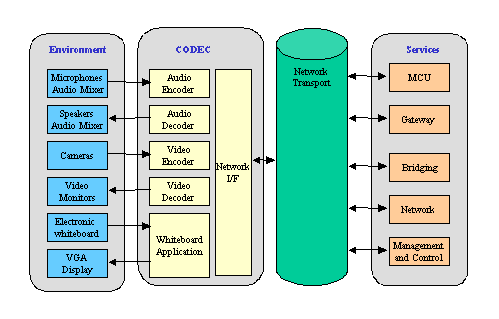
As we have discussed throughout this book, the H.323 standard defines a video conferencing terminal for making simple point-to-point video calls. The standard also defines three additional and related components that extend or improve access to video conferencing functionality. These components include gatekeepers, gateways, and multipoint conferencing units (MCUs). We take a closer look at what these components are intended to do as well as briefly discuss the current implementation state of each in the section below.Gatekeepers
An H.323 gatekeeper is assigned control of a particular set of video conferencing resources (terminals, gateways, MCUs) and functions somewhat like a video conferencing "traffic cop". In this role, the gatekeeper can provide or facilitate several services that enable H.323 conferencing to be more reliable and more secure. If a gatekeeper is present on the network, the H.323 standard requires that H.323 compliant terminals register themselves with the gatekeeper and allow the gatekeeper to identify them to others and control their activities within the zone. Also, if a gatekeeper is not present, the standard allows for the terminal to control its own calls, placing them via IP address with no gatekeeper registration or intervention is required. In practice, however, gatekeeper registration behavior is somewhat unclear (how does the terminal know for sure that a gatekeeper is present? What if there is more than one gatekeeper readily available?) and difficult to enforce (what if a terminal registers with a "rogue" gatekeeper that has been installed on the network? What resources will the rogue gatekeeper be able to provide access to?). Once a terminal is registered with a gatekeeper, the H.323 standard identifies some broadly defined key services that the gatekeeper could provide:Gatekeepers today are available as full-featured standalone software applications and also as scaled down "built-in" functionality included within H.323 terminals, gateways, and MCUs. The degree of video resource identification and control provided by current gatekeepers varies widely and interoperability between one vendor's gatekeeper and another vendor's gatekeeper-controlled resource can be very uneven. Additionally, inter-zone communication and resource sharing between gatekeepers is far less than what would be needed for seamless conferencing on a global IP network such as the Internet or Internet 2. The issues surrounding such implementation can be numerous and it is safe to say that discussions about standards development as well as implementation of H.323 gatekeepers often produce more questions than they answer. However, it is widely agreed that the gatekeeper is a key concept and component for enabling scaleable, Internet-based video conferencing. Most organizations are approaching gatekeeper deployment with the mindset that gatekeepers must be deployed, even "as is", while the developers and the community work to make them what they can and should be.
- Address translation - This function maps an alias or 'video telephone number' of a user to the physical IP address of a terminal. This allows for people to call each other using user-friendly identification, such as an short numeric extension or an email address. Notably, a common schema for scaleable global addressing has not been defined.
- Admissions control - This function accepts or declines a call based on a variety of criteria, including available network bandwidth or specific user authorization level. Simple gatekeepers allow all calls through. (This level of call control is distinct from control at the terminal, where the end user can decide whether or not to answer any given call).
- Bandwidth control and management - The gatekeeper can accept or deny calls based on the total available network bandwidth or based on a preset maximum number of simultaneous calls. This keeps video conferencing calls from overloading the network. The gatekeeper may also handle requests from terminals for additional bandwidth during a call. In many ways, the bandwidth control and management functionality overlaps with the "bandwidth broker" and "policy broker" functionality under investigation as part of IP QoS (Quality of Service) development. The gatekeeper
- Zone management - Each gatekeeper sets up a zone that may include terminals, gateways, and/or MCUs. The gatekeeper controls identification of and communication between devices in its local zone, allows devices to join or leave the zone, and controls access to the local devices from H.323 devices outside the zone.
- Call control signaling - The gatekeeper can process call control signals for particular calls, or allow this information to bypass it and go directly to participating terminals. If the gatekeeper remains instrumental in call control, enhanced management and error handling are possible but with the tradeoff of additional network and processing overhead.
- Call authorization - The gatekeeper can reject calls sent to terminals in its zone. The gatekeeper can also control what call types and resources are authorized for specific terminals. However, authentication is currently based on IP address and/or alias and not tied to any user-specific authentication mechanism.
- Call management and tracking - The gatekeeper can track current calls, log calls placed over time, and provide this call tracking information to other devices. Such information can be used for system administration and maintenance as well as for billing purposes.
- PBX functions - The gatekeeper can provide "PBX-like" services such as call identification, call forwarding, and call transfer. These features, in turn, can make possible applications such as a 'video receptionist' and 'video voicemail.'
Gateways
A gateway provides transcoding services such as address translation, network protocol translation and audio/video coding translation between dissimilar media. The most common current type of gateway transcodes between H.320 (ISDN) and H.323 (IP based LAN) protocols. H.320 and H.321 (ATM), as well as H.323 and H.321, gateways also exist.Gateways have multiple common uses, the most straightforward of which is to allow an ISDN-based system to join a video conference of LAN-based systems. This permits conference participation from areas that do not have high-performance networks available. While LAN-based video conferencing is the newer and more economic technology, ISDN-based systems are likely to be used into the foreseeable future.
A secondary use for an H.320/H.323 gateway is to provide redundancy between LAN-based MCUs. Should a network break occur, a conference could be routed alternately from one MCU, across a local LAN, through a gateway, over the PSTN, back through a second gateway and onto the LAN local to the second MCU.
Because gateways function between protocols, and not within a single protocol, some special configuration may be required. In particular, the RAS (registration, admission and status) section of the H.323 specification, which permits dynamic conference ID registration, has no functional equivalent in the H.320 specification. The result is that if a gatekeeper is present, the conference ID must be pre-defined for multipoint calls. Point-to-point calls not using a gatekeeper do not require special treatment.
A second configuration issue to be careful of is that IVR (interactive voice response) systems often use the asterisk (" * ") to signal request for operator. In such an environment predefined groups intended for use with gateways shouldn't include asterisks. Unfortunately, this requirement conflicts with the trend among H.323-only users to utilize the asterisk as a delimiter.
Some CPU intensive audio transcoding can cause significantly delayed audio, resulting in an objectionable lack of audio/video synchronization. H.323 systems use G.723 and G.711 while H.320 systems use G.728 and G.711. G.711, the protocol in common, provides toll quality audio but uses 64Kbps. Disabling transcoding minimizes audio delay due to transcoding but would leave only 64Kbps available for video in a 128Kbps single circuit ISDN call. Enabling G.728-G.711 transcoding would reduce the audio bandwidth requirement to 16Kbps and free an additional 40Kbps for video. In a 384Kbps triple circuit bonded ISDN call minimizing the audio delay might be deemed worth the minimal video degradation. Whether to permit audio transcoding needs to be decided on a call-by-call basis.
MCUs
The ability for two people at separate and remote locations to shrink the impact of the geographical boundaries between them via video conferencing is certainly exciting and valuable. The concept becomes even more powerful when several locations can be brought together into the same conference, creating a "virtual meeting room" that exists for that particular time and group configuration facilitated by the network. Such "meeting rooms" are created through the use of a Multipoint Conferencing Unit (MCU). The purpose of an MCU is to connect three or more video conferencing systems in the same conference, managing audio and video from each participant to the others such that group communication is achieved. Data sharing is also possible between all participants in a multipoint conference though current implementations vary greatly in terms of how this is done and also how well it works.The H.323 standard outlines two component processes that form the basis of any multipoint interaction — the MC (multipoint controller) and the MP (multipoint processor). The MP is optional and, if present, there may also be more than one. — and two different ways to provide multipoint functionality overall — centralized versus decentralized.
The MC provides for overall control of the conference. This involves forming connections between all endpoints, negotiating common capabilities, and communicating to the MP regarding any necessary switching of audio/video sources. The MP handles the actual processing of incoming and outgoing audio/video streams. Audio from all sites in a multipoint conference is typically mixed and delivered back to all sites in full duplex mode. Video, on the other hand, may be handled in a few different ways:
In a centralized MCU, the MC and MP are included in a single unit to which all endpoints connect. This forms a physical and logical star configuration with the MCU at the center. Each endpoint is, in effect, in a point-to-point call with the MCU.
- Switched based on voice activation (everyone sees the current speaker)
- Switched via manual control ("chair control", where the designated chair decides whose video is being seen)
- Displayed together on a split screen display ("continuous presence", also sometimes called "Hollywood Squares")
- Displayed in individual video windows, one for each site that is being received.
In a decentralized MCU, there is no device that can readily be pointed to as "the MCU". Instead, the component processes (MC and MP) are present to some degree in the client endpoints. The MC of one endpoint will most likely be used to control the conference while each endpoint uses its own MP to send/receive streams in accordance with its own capabilities. The video/audio/data streams from each endpoint are sent one-to-many, which requires the use of IP multicast to facilitate group identification and participation.
Arguments for and against centralized versus decentralized multipoint conferencing are not unlike those surrounding the debate of centralized server-based computing versus peer-to-peer computing. However, with particular respect to H.323 multipoint, the centralized approach has a practical lead at this time given the current state of the H.323 standard. Centralized MCUs are more thoroughly defined and more readily understood, therefore they are more widely available in standardized product implementations. Still, a quick review of the pros and cons of each approach can be helpful.
Centralized functionality lends itself to improved reliability, control and management. It also allows for advanced capabilities to be introduced into one entity but made available to all, thereby reducing costs at the endpoints. Of course, cost is then shifted to the central unit - in this case, the MCU. Other functionality, such as additional transcoding or network gateways, can also be fairly readily added to a centralized MCU, extending the service capabilities further than "simple" multipoint call handling. Again, this increases the cost and complexity of the MCU while decreasing cost and complexity required for client endpoints. Another consideration is that, until quite recently, most centralized MCUs forced each conference participant to the lowest common denominator for call capabilities. For instance, if one participating endpoint could only send/receive QCIF calls at 128K bandwidth, all other participants in the same conference would be forced to send/receive the same. This limitation is changing as increased transcoding capabilities are being introduced into some centralized MCUs.
Decentralized functionality more readily supports flexibility for end-users and a more distributed load over the network. Cost can be determined and distributed based on capabilities desired for particular endpoints. Each endpoint also determines its own send/receive capabilities and does not need to adjust these based on what other participants can do. Also, in addition to providing a mechanism for group calling, support for IP multicast allows for the most efficient use of bandwidth as determined by the placement and concentration of participating endpoints within the network.
Another consideration for the implementation of an H.323 MCU is hardware versus software-based. Again, the factors influencing the decision are not exclusive to a discussion of H.323. Hardware implementations tend to be more expensive and are likely to contain a variety of proprietary components but are likely to be faster and are also prone to be more reliable. Software implementations are more portable, more flexible, and less expensive but may suffer performance issues due to their reliance on the operating system and resources of the computer they are running on. Each type of implementation is available on the market today in a variety of forms. A careful matching of performance requirements to cost variables should be combined with a broad comparison of available products within each implementation type before a final buying decision is made.
There are a few different hardware-based MCU configurations that are available as of this writing. One type features a modular chassis that holds one or more power supplies and a number of other interface cards. Connection "ports" are included on some of these interface cards with the number of ports available corresponding to the number of sites that can be participating in conferences at the same time. Other hardware-based MCUs are based on more stream-lined units that do not feature pluggable modules but instead are ordered with the desired number/type of ports built in. In either case, multipoint conferences involving specific numbers of endpoints (e.g., a three-point conference, a six-point conference, a 20-point conference, etc.) are "brought up" on the MCU and encumber as many actual ports as necessary for the number/type of connections and the amount of time required. Some MCUs include scheduling capabilities that allow conferences to be configured/scheduled in advance and brought up automatically. Others only allow ad hoc use of available ports on a "first come, first served" basis.
Software MCUs operate in much the same way as hardware-based MCUs but consist only of a software package running on a powerful server/computer. Software MCU manufacturers usually limit the number of simultaneous connections by a license key which is purchased by the customer. However, there are technical limits to the number of sites that can be connected together at one time based on the processing power and speed of the server.
Both hardware and software-based MCUs can be connected together to allow larger numbers of sites to be conferenced together simultaneously. This is termed "cascading" and is a functionality that is described in the H.323 standard. MCUs from different vendors should therefore be able to be cascaded together quite readily. In order to do this, one of the ports on each of the MCUs are used to "call into" the other.
Audio and video mixing/switching should still operate as if there is only one MCU involved; the cascading is transparent to the participants.
State of Conferencing Services Products
As it is early in the H.323 lifecycle, the service marketplace is not nearly as crowded as the terminal space. There are two general categories of vendor in the service space: those that provide software MCU products, and those that provide the entire suite of H.323 services - that is, gatekeepers, gateways, and MCUs. In the first category, Whitepine, PictureTel, and DataBeam provide software MCU products. Whitepine provides an MCU solution focused on conferencing known as MeetingPoint, and an alternative offering, ClassPoint, which is optimized for a tele-classing environment. The PictureTel 330 MCU software server runs under Windows NT and can handle up to 24 simultaneous H.323 terminals.VideoServer, RADVision, and Accord offer distinctly different hardware-based solutions for H.323 services delivery. VideoServer, the incumbent market leader in H.320 MCU services, provides H.323 services via their Encounter family of products. The Encounter product line includes the NetGate gateway, NetServer MCU, and gatekeeper software that is available for either platform. The VideoServer hardware is a Pentium PC platform running Windows NT and a Microsoft Web Server for management. The Encounter platforms are available in a work-group and the larger enterprise chassis.
The RADVision offering is a custom RISC-based system running on an Intel i960 platform and includes both MCS and H.320/H.323 gateway implementations. The hardware is thin, rack-mountable, and stackable. As with the VideoServer solution, the gatekeeper software runs on either the gateway or the MCS platform. RADVision's products are closely coupled with their gatekeeper, so that rather than scheduling network resources, the gatekeeper searches for available multipoint or gateway services and provides them to the user. The RADVision gatekeeper also supports call forwarding and the ability to transfer calls to a 'video operator' or receptionist if the called party is unavailable.
Accord offers what they call a "universal transcoding gateway." Effectively, this is an all-in-one video conferencing services platform. Accord claims that their platform supports LAN-based, ISDN, and broadband conferencing services in service provider packaging. The Accord hardware is a proprietary chassis-based architecture built for scalability and reliability. Accord recently announced an agreement to implement their H.323 services using RADVision software to become available in 1999.
As is the case with the H.323 terminals the current MCS offerings have limited interoperability. While developers are working on interoperability issues, it is critical that anyone deploying these services today pay close attention to the specific terminals, servers and version they plan to implement and test these specific pieces together as a system.
A further concern is that there is currently a lack of qualified system integrators. While there are many integrators that can successfully demonstrate several terminals working together and will certainly sell them to you, very few have an understanding of the complexities of full-scale H.323 deployment in an environment as complex as that found on a typical college campus today, much less an Internet2 site connected directly to the vBNS or Abilene. So, the deployment of advanced H.323 services remains a truly uncharted territory, somewhat frightening, but an exciting place for the adventurous video explorer.
Related Topics
Storing sessions on Video Servers Broadcasting Conferences Supporting different video encoding formats
What About Multicast?
Models for Campus Deployment
Storing sessions on Video Servers
One way to greatly improve the utility of video conferencing would be to store a video conference on a server for playback later. For example, a class video conference could be stored for later viewing by someone who missed it, or a legal meeting could be stored as part of the record of the proceeding. However, this is not very easy to do at the present time. The best way to store a meeting on a video server currently is to feed the analog video output from the system into a video server (or a VCR for a low-tech solution). This has several drawbacks: the quality of the video is reduced, data transmitted with the video conferencing session is lost, and it requires a lot of manual setup on the part of the users.
Over a year ago, vendors told us they were working on ways to feed the digital data directly into a video server, but we have yet to see any products with this feature even enter beta testing. Broadcasting Conferences
Related to storing conferences, is the notion that it would be nice to be able to broadcast a conference to many users. This scenario is often described as the 'brown bag lunch' scenario. A panel of 'experts' engages in a normal H.323 interactive videoconference. The output of this conference is broadcast to many hundreds or thousands of viewers elsewhere. The viewers are not 'in' the conference and cannot participate in the normal way, although it is possible that they could ask questions of the panel via chat or email. The scenario generally uses IP multicast as the means by which to broadcast the signal to many destinations. As with storing sessions on a video server, this functionality is currently in development and should be available in a similar time frame.
VTEL's TurboCast product provides this functionality when using some of VTEL's videoconferencing clients. Most applications of this type are done using video broadcasting systems such as Real Networks or Microsoft Windows Media. Supporting different video encoding formats
Although the H.323 video conferencing standard specifies the use of a standard video encoding format, H.261 and the optional H.263 video codec, some video conferencing software provides the flexibility to use additional audio and video encoding formats. Often, when making a call to another terminal made by the same vendor, the video conferencing software will automatically switch to a proprietary encoding format that the vendor feels provides superior quality audio or video. Also, users with access to high bandwidth networks might want to use a higher quality, higher bandwidth encoding format such as MPEG-1 or MPEG-2. Using a non-standard video format is okay, as long as the video conferencing software supports standard formats as well, so calls can be made to terminals made by another manufacturer.
One popular system in the higher education market is Litton Network Access System's Camvision product. This system provides MPEG-2 over Ethernet or ATM links, however, it is not H.323 compliant. Four-user multipoint calls are supported with this system, without requiring an MCU. The H.321 standard for videoconferencing over ATM is also in use at some higher education sites. It too is incompatible with H.323 clients, unless some sort of bridge is used. Currently, bridges of this sort are done using the analog video ports on the devices. What About Multicast?
How H.323 traffic travels the InternetH.323 videoconferencing sessions travel across the network on top of a network transport layer known as IP. The H.323 standard uses two types of IP transport: TCP and UDP. TCP is designed to guarantee that the data arrives in full, in its original condition. UDP is designed to get most of the data to the destination most of the time. When you purchase something online on the Internet, your are using the TCP transport. Both you and the vendor want to be sure that your order is received completely and accurately. You would not be happy if a few bits were changed in the amount charged to your credit card. In the event that some error occurs during the data transfer, the transaction can be repeated over and over again until it is done correctly. In contrast, suppose you are watching a live broadcast of a sports event. If there is a glitch and a few frames get dropped, you probably don't care. If you had the last frames sent again and again until successfully delivered, what would you do with them? See them out of order? Stop live recording and wait? This type of transport is known as UDP.
The H.323 standard requires the use of both TCP and UDP transport. TCP is used for control and data sharing such as file transfer. You do definitely want to be sure that sessions are set up correctly; you do want to guarantee that there are no errors in the transmission of a document. UDP is used when sending video, audio, and status information. Most of the time, most of this type of data arrives correctly; when they do not, we don't care unless the percentage of missing information becomes large enough to be noticeable.
Efficient Network Transport
H.323 sessions are typically "unicast", meaning that one copy of the transmission is created for and addressed to each unique end-user. If there are 5 users participating in a session, 5 copies must be sent, eac
h one addressed to a different end user. The data is deconstructed into packets, each of which carried an end-user IP number as the destination address. Since IP numbers are unique, a separate copy must be sent to each end-user. In any stream of data, including a stream of video data, the actual encoding of the data can be separated from the details of the transport mechanism used. Today, the H.323 standard calls for TCP transport of control and data; therefore, unicast is required. However, it is possible to substitute a different transport mechanism for TCP. Substituting one transport mechanism for another should have no noticeable effect (from the end-user's point of view) on the quality or the video conferencing session; what the network sees, however, are two entirely different traffic patterns.
What is IP Multicast?
IP multicast is a bandwidth efficient way of delivering data, in particular video and voice, to multiple recipients using a single copy for all rather than one copy each. The network can more efficiently transport the information by sending a single copy of the d
ata through each piece of network equipment. Rather than addressing a unique IP number, multicast packets are addressed to a special set of broadcast addresses, known as Class D addresses (the block of IP numbers from 224.0.0.0 to 239.255.255.255). Since broadcasts are, by definition, addressed to "everyone", a single copy passing through a network device will be forwarded to every downstream connected device. The broadcast address serves as a virtual channel; the end-user selects the channel by selecting the broadcast address, and thus receives the data stream by request.
You should now be asking yourself this question: suppose there are 500 programs being offered through multicast. Will my network be congested because one copy of each of these 500 programs is using bandwidth on the network, even if no one is watching any of them? To address this problem, the use of sparse mode PIM (Protocol Independent Multicast) is recommended. Sparse mode PIM makes efficient use of the network by making sure that no multicast broadcasts are sent to a router unless some end user behind the router has made a request to send or receive. Then, only the requested programs are allowed to pass through. Selecting a multicast broadcast is known as joining a multicast group. When you join a multicast group, your request is sent back through your router; the router sends a request towards the broadcast source(s). These actions build a delivery "tree" through which a single copy of the multicast is delivered. The end user will experience a noticeable pause between requesting to join a multicast group and the start of the requested stream of data due to the time it takes to build the delivery "tree".
Why are universities, as well as other ISP's, interested in conserving bandwidth? Even if universities are able to provide "unlimited bandwidth" on campus, off-campus connections are usually arranged through some commodity internet service provider, and that connection is an expensive one. Access to the Internet at large, even to Internet2, is usually a bottleneck in the network (the point with the most limited bandwidth). Videoconferencing can be used across campus, but the more typical application is to communicate with colleagues at a distance - off-campus. Anything that can be done to conserve bandwidth at the bottleneck is going to be cost-effective.
Multi-point Sessions without an MCU
Earlier in this cookbook we described point-to-point and multi-point sessions. We stated that multi-point sessions require an MCU to receive and re-broadcast the session to each individual participating in the multi-point conference. However, IP multicast makes it possible to engage in multi-point conversations WITHOUT USE OF AN MCU. Since MCUs are very expensive, it is easily apparent that multicast offers a more cost-effective approach to multi-point videoconferencing by using the existing router infrastructure.
In a multi-point multicast conference, a single Class D broadcast address is assigned for the conference in advance. When a multicast session is created, the Session Directory (SDP) Protocol assigns an unused Class D address. (Since there is no global repository of who has used what address, there are some interesting issues in defining how you know whether an address is "unused" or not). Suppose you want to create a multicast session. Everyone participating in the videoconference sends out network packets that are addressed to the same Class D address. When using an MCU, each participant's VC is transmitted to the MCU that acts as a server, re-broadcasting the data to all connected participants. In multicast, each user's data is broadcast directly from each user's VC system to all other participants, without need for a central server. As an end-user of multicast, these details are hidden from you. What you see is a user-friendly interface that presents you a list of available broadcasts, much like a TV guide. You see which sessions are currently running; you see which sessions are scheduled in the future. If you want to create or announce a new session, you click a button and fill out a few fields. To join a session, you click on one of the entries in the "TV Guide".
Without an MCU, participants are free to add or remove themselves from conferences, without having to be pre-authorized through a gatekeeper. Should you want to create a private conference, multicast software permits you to do so (users have to know a password to sign on, similar to accessing a private web site). In either case, no central administration is required to establish the session. If a session requires security, whoever establishes the session can establish the security and send passwords to selected participants.
What hardware, software, and network infrastructure are required to support IP multicast?
Gee, if IP multicast saves bandwidth and eliminates central administration, why doesn't everyone just use it? One year ago, the answer was that most network backbones did not transport multicast traffic, so you couldn't get "from here to there". One year ago, the only videoconferencing software supporting multicast was the public domain set of software commonly referred to as the MBONE tools. Like much public domain software, it (vic, vat, rat, wboard, etc.) it tended to be difficult for the average end-user to install and configure. Commercial H.323 vendors did not offer multicast transport for their products.
What a difference a year makes! Both the vBNS and Abilene networks now fully support multicast traffic on the backbone. In addition, several commercial ISP's such as Sprint (multicast@sprint.com) and UUNET (http://www.uunet.com ) are offering IP multicast services. Commercial vendors, including VCON (http://www.vcon.com ) and Lucent (http://www.lucent.com/enterprise/ipapps/conferencing/), sell H.323 systems that support IP multicast. These offerings have all the gotchas and limitations that you would expect in Version 1 of any product, but they will improve in the future. A free version of the IP/TV multicast viewer, with 1 year license, is available to Internet2 member institutions at http://netaid.uoregon.edu/. IP/TV allows you to watch and listen in on multicast conferences, but it doesn't allow you to contribute; it can operate at higher resolution than the public domain clients can. A nicely bundled set of MBONE tools for Windows (MASH) is available from UC Berkeley at http://bmrc.berkeley.edu/bibs/download/index.html. Another bundled set known as Shrimp is available from http://www.ja.net/development/video/shrimp/. The Unix/Linux community will find tools at University of Oregon Video Lab and the Internet2(tm) Networks Multicast Trial and Setting up MBone Tools for Windows95/NT, Macintosh and Unix.
Current roadblocks to the use of IP multicast are found in campus network architectures. While the national backbones can deliver IP multicast to the campus "door", it is still difficult to deliver multicast traffic to all locations on campus. Very few campuses can deliver multicast traffic "anywhere" - the University of Oregon is a notable exception. Most campuses that do offer multicast services "everywhere" do so using proprietary network protocols.
Just as proprietary H.323 protocols allow you to achieve sophisticated levels of H.323 videoconferencing at the cost of losing inter-operability, proprietary multicast implementations allow you to deliver multicast traffic, but at the cost of losing inter-operability. Ideally, a network implementation of multicast support would be vendor-neutral. Large campuses purchase network equipment over a period of time, often from different vendors, and thus rely on adherence to standards to assure cross-vendor compatibility at some predictable level. Even if your campus has managed to achieve single vendor, single generation equipment purchases, you will be communicating with colleagues at other institutions who may have standardized on some other vendor's equipment. Adherence to standards may limit you to lowest common denominator performance, but it's predictable and reliable.
In order to deploy IP multicast, the following components must be considered: desktop software; desktop network interface card (NIC); campus wiring; use of network hubs or network switches; network routers (core electronics). Obviously, the software must support IP multicast. Windows95 machines require Winsock 2 drivers. ( updates available at ftp://ftp.microsoft.com/bussys/winsock/winsock2/ws295sdk.exe )
It is very important that a good NIC is installed at the desktop. Communications will be most efficient if the NIC handles both multicast and address filtering in the NIC hardware (rather than occupying your PC's processor time to do so). Detailed information about NIC architecture and level of multicast support can be found at http://www.stl.nps.navy.mil/~mcgredo/projectNotebook/mcast/EthernetMain.html. However, even when the CPU does process multicast broadcasts, studies indicate that the burden on the CPU will not be overwhelming, even for large numbers of multicast groups (http://www.stl.nps.navy.mil/~mcgredo/projectNotebook/mcast/ethernet.html).
Wiring infrastructure is a crucial component. Wiring that meets or exceeds Category 5 wiring standards is required for reliable transmission of videoconferencing data and especially for multicast. You will need to check with your campus network architects to determine the type of wiring installed at your locations.
Use of switched rather than shared Ethernet connections is preferred. This refers to the network device that sits immediately behind the wall jac
k your PC is plugged into. In a shared connection (an Ethernet hub), all traffic that enters the hub is broadcast to EVERY connected device. If you have incoming or outgoing video traffic, it is going to be sent to every connected station, which will have to decide whether to keep or toss the transmission. If the number of devices connected to a shared hub is very small (for example, 12) AND if the video bandwidth is relatively low, it may be possible to deploy multicast over shared hubs. However, this approach is
not advisable unless the campus network administrators can exert great control over the number of multicast sessions and their bandwidth. A switched network connection is better; traffic is sent only to the destination PC, not to every connected device. There is one "small problem", however; the multicast broadcast is addressed to "everyone", so multicast traffic can in effect turn your switch into a shared hub!
To avoid this problem, the IGMP (Internet Group Multicast Protocol) protocol is used. IGMP allows an end-user's PC to request to JOIN a multicast session or to LEAVE a multicast session. If the switch supports IGMP, it will know to send multicast traffic only to ports where the end user has requested a JOIN, and the switch will ignore ports that have not joined, or that have left, a multicast session. In short, the switch must be "IGMP aware" to be truly useful.
Switched Ethernet connections may have both end-users and shared hubs pl
ugged into them. As stated above, transmission of multicast through a shared hub may prove to be unmanageable, so it may be desirable to allow multicast traffic to pass through a switch to individual end users, but be blocked from passing through to the hub. Ability to control multicast at the port level is a desirable switch feature.
Recommendations from the Internet2 Multicast working group and NLANR are to configure your campus edge router t
o accept PIM-Sparse Mode traffic (only requested broadcasts transit your campus). Recommended campus settings include both PIM-Sparse Mode and PIM-Dense Mode. PIM-DM is suitable for campuses where end-users densely populate the network and there is plenty of bandwidth to spare. To the left, you will find a graph indicating the impact of multicast traffic on the University of Alabama at Birmingham (UAB) campus backbone under PIM Dense Mode. PIM-DM is a configuration which allows ALL available multicast traffic to flow through ("FLOOD") for several seconds, then any connections not being watched within the campus are stopped ("PRUNE") for several seconds. The net result on a bandwidth utilization graph appears to be a continuous flow of 3-10Megabits per second of traffic. PIM Sparse Mode sends multicast traffic only to end-users who have "joined" a session. PIM-SM is recommended when there are only a few multicast receivers and bandwidth is to be conserved. Very excellent information on IP multicast and associated network architecture issues can be found at the NLANR engineering site ( http://www.ncne.nlanr.net/faq/multicast.html ).
Models for Campus Deployment
H.323 Videoconferencing: Case Studies and Deployment IssuesState of H.323 Deployment Today
In the 12 months since the release of the first version of the Cookbook (April 1999), there has been a surge of interest and activity in H.323 videoconferencing in the higher education arena. Some key H.323 initiatives and events have been instrumental in both generating and supporting much of this interest and activity:
As a result of these events and initiatives, H.323 has gained an initial foothold in many institutions, and a community of H.323 users has clearly emerged. ViDeNet is providing this community with the means of coordinating Gatekeeper zones and ensuring seamless interconnection, while participation in both the LSVNP project and the Megaconference provided the impetus for IT personnel and end-users at many institutions to purchase and deploy a H.323 client. The LSVNP project, meanwhile, is enabling end-users to explore the value and ease-of-use of H.323, and do so cost-effectively by taking advantage of multipoint and gatekeeping services and technical support offered at the four host sites.
- The ViDe Large Scale Video Network Prototype (http://www.cavner.org/lsvnp/) is a distributed H.323 video conferencing testbed, funded by the Southeastern Universities Research Association and BBN, the research arm of GTE. The goal of this testbed is to explore issues critical to the deployment of seamless networked video, and accelerate the deployment of H.323 through resolution of large-scale deployment issues. BBN is collaborating with ViDe to utilize the LSVNP to conduct analysis of video traffic patterns. The LSVNP testbed is the first large-scale distributed video conferencing network with host sites at The University of North Carolina at Chapel Hill, NYSERNet (New York State, Educational and Research Network), The Georgia Institute of Technology, and The University of Tennessee
.
A total of <http://www.cavner.org/lsvnp/awards.html> 14 regional and national projects</a> are currently being supported with gatekeeping and multipoint services during Phase I (Jan. 1 - Dec. 31, 2000). Comprising over 60 institutions, the projects were selected from responses to an RFP released by ViDe in August '99. They include applications in marine sciences, veterinary medicine, speech pathology and audiology, training for k12 teachers, architecture, higher education outreach and technical assistance in deafness, emergency telemedicine, and earthquake research. As of this publication date (June 2000), the first quarter of this project has been completed, and participants are beginning to use the LSVNP services for regular conferences and collaborative work.
- The <http://www.mega-net.net/megaconference/> Megaconference</a> is a "permanent, continuous multipoint H.323 video conference" hosted at Ohio State University. Over 60 national and international research institutions and networking organizations participated in the Megaconference event held at the Internet2 Fall meeting in October 1999. This event consisted of multiple sites collectively engaging in a live demonstration of the capabilities of H.323. Each participating institution/organization had an opportunity to address the conference participants, speak to their deployment of H.323, and talk about and showcase H.323 applications at their site. This event was the largest H.323 multipoint conference conducted to date, and was simultaneously broadcast on the Internet in MPEG1, Real and QT4 formats.
- ViDeNet (http://www.cavner.org/videnet/) was created by ViDe to be a testbed and model network in which to develop and promote ViDe's goals for highly scalable and robust networked video technologies, and to create a seamless global environment for teleconferencing and collaboration. From a technical perspective, ViDeNet is a mesh of interconnected H.323 zones. Each zone represents a collection of users at each site that are administered by the site itself. ViDeNet enables end-users registered with each zone to transparently call each other, thus facilitating seamless use.
The following institutions/networking organizations are currently registered with ViDeNet: Aristotle University of Thessaloniki (Greece), The College of William and Mary, ESNET, HEAnet (Ireland), LSVNP (Georgia Institute of Technology), LSVNP (NYSERnet), LSVNP (UNC), LSVNP (UT),MCNC, National Technical University of Athens (Greece), North Carolina State University, NYSERnet (New York State, Educational and Research Network), Ohio State University, OARNet, Penn State, RADVision, SURFnet (Netherlands), The University of North Carolina (netcall1), The University of North Carolina (Public Zone), The University of South Carolina, The University of Tennessee, and Yale University. 144 individual accounts are currently registered with the ViDeNet dialing directory.As well as these larger scale events and projects, many institutions are regularly conducting demos and seminars on H.323 for their faculty and staff, some of which are available on the web (put URLs for UAB and UT sessions here).
Case Studies/ Model Applications
The following examples of H.323 applications currently being deployed have been selected to illustrate the range and variety of emerging H.323 use, and the potential H.323 has for supporting collaboration and resource sharing on our campuses. Whereas H.323 videoconferencing is used in many of the same application domains as its precursor, H.320, (specifically, Distance Education, Telemedicine, and for communication purposes), these case studies should demonstrate that the convenience and cost-effectiveness of H.323 have been recognized by the academic community, and there is no shortage of creative application of the technology. The applications described herein are at various stages of maturity, but all are beyond the mere conceptual stage.
Place your mouse over the image for more information on the project.
University of North Carolina School of Social Work: Teaching and Training over the Internet. PEPNET Videoconferencing Testbed Evaluation of H.323 Videoconferencing for Medical School Planning on a High Performance Statewide Network. Virtual Rounds: Sharing of live animal clinical cases via H.323 ViDe "Large Scale Video Network Prototype" Project Campus Deployment Issues
Although H.323 use in higher education is growing, it is far from being systematically and ubiquitously deployed. H.323 enables more end-user autonomy than H.320 videoconferencing, and the technology is not prohibitively expensive, but these very attributes make the need for coordinated and judicious deployment all the more essential. Typical faculty/researcher purchase is most likely going to be limited to end-points/clients, leaving the provision of MCU/Gatekeeper services to either the central IT organization on campus, or to an external service provider. Although by no means exhaustive, the following issues and questions are some of the more critical that need to be addressed in a H.323 campus deployment plan. The significance and scope of many of these issues became apparent in the ViDe Large Scale Video Network Prototype project:
- Cost Model: Charge-back vs. centrally-funded service: The operational costs likely to be incurred in establishing and maintaining a H.323 network will be evident in the points to follow. Operational costs aside, the capacity to integrate the telephone network with a H.323 network will obviously have the effect of reducing the funding stream associated with traditional telephone services on our campuses. This issue, needless to say, is controversial, and demands careful consideration.
- Coordination/Management of Gatekeeper Zones:
While a point-to-point H.323 call is relatively easy to make, there are additional elements in a H.323 communication system that must be in place for multipoint calls, for bandwidth management, and for integration with other H.32x standards - a Multipoint Control Server (MCU), gatekeepers, and gateways, respectively. The gatekeeper function is critical for call management, and, if a gatekeeper is present on a LAN, clients must be registered with the gatekeeper. Gatekeepers at different sites must then register with each other for cross-site/Gatekeeper communication. Some centralized management and establishment of policies will be necessary in order to avoid a situation of multiple and conflicting gatekeepers on a LAN, and to coordinate with Gatekeepers at other sites.- Management and Coordination of Directories: Since H.323 calls are currently based on the IP address of the end-point, (although efforts are being pursued to establish a more intuitive scheme. See http://www.cavner.org/videnet/sites/naming_rfc.htm), there is obvious need to publish names with IP addresses and Gatekeeper assignment.
- Support for Multipoint Conferences: How much centralized support can a service provider be expected to provide to end-users? What scale of H.323 use can be supported? If the central IT organization is responsible for provision of MCU and gatekeeper services, end-users can feasibly schedule their own multipoint conferences through a web-based interface, thus at least eliminating the need for scheduling support.
- Security: It is critical that H.323 is carefully managed to ensure secure and judicious use. Central coordination of gatekeepers and gatekeeper zones should support this endeavor. Firewalls currently cannot pass H.323 traffic, due to the underlying dynamic port allocation scheme used in the protocol. Therefore, firewalls must be configured to pass all traffic to H.323 endpoints within their domain. This creates a security problem for firewall administrators. Next-generation firewalls that perform stateful inspection of the packet streams, and thus generate secure access on-the-fly, should resolve this issue. Additionally, the security protocols within the H.323 standard are not widely adopted, which leads to potentially unauthorized use of expensive resources, such as voice and H.320 gateways.
- Infrastructure: H.323 does not perform well on commodity Internet connections, is not suitable for modem connections, and will not penetrate all market areas until high speed access to the home (DSL technologies, cable modems, for example) is more ubiquitous. However, in many academic/research projects, it is reasonable to anticipate that at least one of the sites will have less than optimum networking connections, which introduces the need to consider a variety of solutions (H.323, H.320, POTS), necessitating the addition of a gateway.
- Provision of assistive technologies: Consideration should be given to whether voice-activated MCUs will support all use on campus, or will there be need for a MCU with continuous-presence features, - for our deaf and hearing-impaired constituents, for example? Are there other instances of special needs on campus that should be met?
- Technical Support: Provision must be made for the same level of technical support, troubleshooting, client recommendation, installation and deployment with as any production technology. This is probably the single greatest cost factor in the deployment of H.323 services. Support requirements are especially heavy because H.323 represent a whole new concept in computer use than most individuals and IT organizations are used to. Expect very low support staff/user ratios in the early stages of deployment.
- Integration with H.320 Videoconferencing: Since many campuses have already invested in and have mature H.320 videoconferencing services, and since high speed/advanced networks are not ubiquitous, it is advisable to develop a model for deployment that integrates H.320 with H.323 and that complements any existing video conferencing service.
- Integration with the Telephone Network: H.323 is an applicable standard not only for video conferencing over IP, but for telephone communications as well. The same infrastructure (tech support, gatekeeper administration, account management, directory services, etc.) supports both applications. In fact, under H.323, the two applications are not really distinct, there are just multiple types of end stations on the network (e.g. IP phones, desktop video, teleclassrooms) all able to intercommunicate. Furthermore, since many organizations have different cost recovery models for telephone service (i.e. charge-back) than for Internet service (i.e. centrally-funded flat rate), moving telephone services over to the IP network will have the effect of reducing the funding stream associated with telephone services.
- Capture, Archiving and Serving of Conferences: Provision should be made for the capture, storage and serving of conferences on-demand, necessitating choice of streaming video format, etc. This activity, however, raises issues of copyright ownership: With multiple sites participating in a conference, which site owns the copyright of the content that is generated during that conference?
- H.323 Room Systems: Provision should be made for optimizing room conditions with the appropriate lighting and sound systems.
- T.120 Application Sharing/Data Collaboration: Provision should be made for instruction and support in the use of the T.120 application sharing tools that are typically integrated with the H.323 client.
Any current conference room can be adapted for use as a videoconference room by making adjustments based on the needs of video and audio equipment to capture signals. This is less of a concern for new construction, as these details will be an integral part of the function of the room, and will be designed in by the architect. More probable will be the conversion of an in-use conference room for video conferencing. The advances in technology have made the concept of an in-house video studio an attainable communication tool. As in movie and television production where the sound stage is a critical part of the process, the conferencing room is a critical part of productive video conferencing. The walnut paneled conference room is not the most conducive atmosphere, and creates a challenge for video and audio capture. There are several adaptations that will enhance the videoconference as a useful communications tool. Appendix 1. Developing a Productive Video Conference Room
The most difficult obstacle is maintaining a balance for the camera. The background colors and lighting will affect the view as seen by the remote participants. To be able to see all participants clearly, wall or discrete floor light sources have supplemented traditional ceiling light sources. Lighting is one of the few critical factors to successful video conferencing. While there are several concepts popular with designers, one key design parameter appears throughout all the recommendations. To eliminate shadows, a combined lighting arrangement ratio of 60/40 for ceiling and wall lighting is recommended. Wall lighting should be indirect and these fixtures are readily available from a wide range of suppliers. The key in this split lighting scheme is to equalize the available light on the participants and eliminate shadows, dark backgrounds, and bright spots in the center of the conference table. Lighting consideration for the intended room will factor heavily into the choice of wall coverings and table surfaces.
The actual colors and patterns of the participants clothing may affect video reproduction, but usually only in extreme cases of attendee dress. Specific colors are recommended for backgrounds and wall covering to enable better recognition of attendees without straining the capture capabilities of the video camera. Recommended colors are soft, textured wall coverings, but smooth painted walls will work if colors are muted earth tones and the lighting is adjusted to suit.
Audio technology has developed to a level where only the obvious interference from air conditioners, telephones and other extraneous noise sources would factor into microphone placement. While most conferencing systems use the speakers installed in the monitors, there are separate speaker systems available to meet the needs of larger room sizes.
The next concern is the size of the room based on the available space. The video conference is directionally oriented by the visual focus capabilities of the camera and factors in to room layouts. Allowances must be made for furniture, additional wallboards etc. The size of the attending group is not only dependent on the actual room size. A room layout will determine how many participants may attend. The actual seating arrangement is then defined to allow the participants to see and be seen through the conference. There is a minimum distance required for the camera to capture all of the attending participants and must be factored into a layout. Furniture manufacturers have developed conference tables specifically designed to allow meeting attendees to see and be seen by the video equipment. There are several sources available for specialized video equipment including custom conferencing tables and matching cabinets. The best capture angle for the video camera is a "down the table view" with the end seat closest to the camera empty. This avoids having an attendee in that seat, who can neither see the monitor nor be seen by the camera, and permits the assembled group to view the remote part of the meeting. This arrangement also creates a clear walkway into and around the table, and creates an aperture distance for the camera without unnecessary waste of available floor space.
Video conferencing equipment does require room. There is a monitor required for receiving a conference, and where the H.323 terminal's system does not provide a screen in screen option, a second monitor is needed for the "self" image portion of the videoconference. Some conferencing equipment uses additional equipment requiring space. Most conferencing cabinets allow for the housing of this equipment in the base and placement of the monitor at an easy to be seen height on top of the cabinet. Additional cameras for enhanced teaching situations, with an additional monitor would also factor into the space considerations in planning a video conferencing room. These design factors are dependent on the requirements of the manufacturer and the available space in and near the proposed conference room. There is a sliding scale for required space. Most equipment can be located within the room and installed within a finished cabinetry. An ideal case scenario would be an adjoining "mechanical" room to house the associated equipment, leaving the monitors, camera and microphones the only physical presence in the room. With the advance of the flat screen monitors, this presence will be diminished in the future as these new monitors will require less space
For the issue of reliability and "clean" power, most manufacturers recommend individual service circuits for the equipment. Due to the influx of sensitive high technology equipment in business, most commercial real estate space has "clean" power lines available for computer, communications and operational equipment. The actual link is made over ISDN or the computer network and these lines are currently common place in 99% of commercial real estate dedicated to business use.
Attending to a few critical details will develop a modern videoconference room and there are designers who specialize in these concepts. These concepts permit development of a comfortable, functional videoconference room that meets the physical needs of the equipment and accommodates interior design tastes in the intended work environment.
Sources of Information:
Trowt-Bayard, Toby, and Jim R. Wilcox, Video Conferencing The Whole Picture, Flatiron Publishing, Inc., 2nd Edition, March 1997.
AXIS Design Group, http://www.axisdg.com, accessed December 1998, general images and information provided under "Specialty", "Space Solutions", with specific study of: http://axisdg.com/Specialty/Space_Solutions/Experience/People/President/_Clients _Projects/ Enlarged_Briefing_1/enlarged_briefing_1.htm
Bellwether Design, http://www.bellweather-design.com, accessed December 1998, with specific study of : http://www.bellwether-design.com/designtech.htm
EPA Audio Visual Inc., http://www.epaaudio.com, accessed December 1998, with specific study of: http://www.epaaudio.com/design.html
Accuwood Inc., http://www.accuwood.com, accessed December 1998.
The information listed here was not written by ViDe. It is not contained on the ViDe Cookbook server. These materials are listed solely for the purpose of directing you to more detailed standards information should you be interested in such topics. Appendix 2. H.323 Specification
Several excellent primers which describe the standards are:
- Video Conferencing over IP -
A Primer on the H.323 Series Standard
Trillium H.323 Tutorial
Trillium H.323 Tutorial Self Test- Data Collaboration -
A Primer on the T.120 Series Standard- Markup Languages -
W3C Synchronized Multimedia Integration Language (SMIL) 1.0, Specification
Appendix 4. Interesting Web Sites on Video Conferencing
Products Information
PolyCom
Intel Business Video Conferencing
PictureTel LiveLAN, LiveManager and LiveGateway Desktop Videoconferencing System
VCON Telecommunications Ltd.
VTEL Online
RADVISION H.323 Homepage
Accord Homepage
VideoServer Homepage
Global Videoconference NetworkFor Further Reference
Center for Advanced Video Network Engineering and Research
Large Scale Video Network Prototype
Videoconferencing Guide
Videoconferencing Categories and Terms
NetMeeting Overview and Download Site
International Multimedia Teleconferencing Consortium
International Telecommunications Union (ITU)
The Internet Engineering Task Force (IETF)
The IP Multicast Initiative
Trillium H.323 Tutorial
Trillium H.323 Tutorial Self Test
A Primer on the H.323 Series Standard
A Primer on the T.120 Series Standard
PictureTel Standards Page
Welcome to the OpenH323 Project
Multimedia Streaming, University of Wisconsin - Madison
TERENA DEVICE PROJECT, Desktop Video Conferencing - Current Products and their Interoperability
W3C Synchronized Multimedia
W3C Synchronized Multimedia Integration Language (SMIL) 1.0, Specification
Glossary of Terms
A - B - C - D - E - F - G - H - I - J - K - L - M - N - O - P - Q - R - S - T - U - V - W - X - Y - Z
A
antialiasing
A method for smoothing the jagged edges (stairsteps) often seen in graphics or video. The method reduces the jagged edges by placing intermediate shades of color or gray around the steps.
ASF
Active Streaming Format. A Microsoft file format for digital video playback over the Internet, or on a standalone computer. Kind of a wrapper around any of a number of compression types, including MPEG. Part of Netshow, a proprietary streaming media solution from Microsoft. Biggest competitor is Real Networks. While this 'wrapper' support many standard formats, ASF files are themselves proprietary.
AVI
Audio Video Interleaved. A Microsoft format for digital audio and video playback from Windows 3.1 Somewhat cross-platform, but mostly a Windows format. Has been replaced by the ASF format, but still used by some multimedia developers.
B
banding
The presence of extraneous lines.
bandwidth
A measure of the amount of data that can fit on a network. Measured in Hertz or bits per second. For example, a regular Ethernet line has a bandwidth of 10 Mbps (10 million bits per second)
bit rate
The speed of a communication channel, usually used when referring to modems. Most new modems follow the V.90 standard, which has a bit rate of 56kbps (56,000 bits per second)
C
CIF
A video format that supports both NTSC and PAL signals. CIF is part of the ITU H.261 videoconferencing standard. It specifies a data rate of 30 frames per second (fps), with each frame containing 288 lines and 352 pixels per line.CODEC
Stands for Coder/Decoder (a telecommunications term) or Compressor/Decompressor (a computer term). A telecom codec is the piece of hardware that connects a data line to the customer's local network. In the computer world, a codec is a piece of software that compresses and decompresses digital audio or video.
chrominance
color
D
decoder
A piece of hardware or software that is used to convert video or audio (typically) from the digital form used in transmission or storage into a form that can be viewed.
digital audio
Audio that has been encoded in a digital form for processing, storage or transmission.
dithering
Giving the illusion of new color and shades by combining dots in various patterns. This is a common way of gaining gray scales and is commonly used in newspapers. The effects of dithering would not be optimal in the video produced during a videoconference.
F
full duplex
Sending data in both directions at the same time. Usually higher quality, but requires more bandwidth. In video conferencing, full duplex will be much more natural and useable. Cheap speakerphones are half duplex, whereas more expensive ones are full duplex.
G
G.7xx
A family of ITU standards for audio compression.
gatekeeper
In the H.323 world, the gatekeeper provides several important functions. First, it controls access to the network, allowing or denying calls and controlling the bandwidth of a call. Second, it helps with address resolution, making possible email type names for end users, and converting those into the appropriate network addresses. They also handle call tracking and billing, call signaling, and the management of gateways. They also handle call tracking and billing, call signaling, and the management of gateways.
gateway
Gateways provide a link between the H.323 world and other video conferencing systems. A common example would be a gateway to a H.320 (ISDN) video conferencing system.
H
H.261
ITU standard for video coding for videoconferencing. H.261 is a discrete cosine transform (DCT) based algorithm for video in the 64kb/s to 2mb/s range. All H.323 compliant video conferencing system are required to support this codec.
H.263
ITU standard for video coding within videoconferencing. H.263 offers better compression than H.261, particularly in the low bitrate range used by modems.
H.320
ITU standard for videoconferencing over ISDN and fractional T1 lines.
H.323
ITU standard for videoconferencing over networks that do not guarantee bandwidth, such as the Internet. H.323 is the standard that this cookbook is recommending that most users in the education community should be using. For more detailed information on this and the other ITU standards see the bibliography of this document.
H.324
ITU standard for video conferencing over standard phone lines.
half duplex
A telecommunications system where data can only flow in one direction at a time. Cheaper speakerphones are a good example of this, where only one person can talk at a time.
I
IETF
Internet Engineering Task Force. This is a group that develops and publishes new standards for use on the Internet.
IGMP
Internet Group Management Protocol. This protocol is used in multicasting.
IP
The Internet Protocol. IP is the basic language of the Internet. It was developed by the government for use in internetworking multiple computer networks together.
IP Multicast
A system for sending IP transmissions out only one time, but allowing for multiple users to receive it. This would reduce the bandwidth required for audio and video broadcasting over the Internet, but it is not widely used yet.
J
jitter
A flickering on a display screen. Besides a monitor or connector malfunction, jitter can be caused by a slow refresh rate.
K
Kerberos
Kerberos is a network authentication protocol developed by MIT. It is designed to provide strong authentication for client/server applications by using secret-key cryptography.
L
latency
The length of time it takes a packet to move from source to destination; delay.
lossless compression
Refers to data compression techniques in which no data is lost. For most types of data, lossless compression techniques can reduce the space needed by only about half. Only certain types of data can tolerate lossy compression. Lossless compression technique when compressing data and programs.
lossy compression
Refers to data compression techniques in which some amount of data is lost. Lossy compression technologies attempt to eliminate redundant or unnecessary information. Most video compression technologies, such as MPEG, use a lossy technique.
luminance
brightness
M
MBONE
Multicast Backbone. The MBONE is a system of transmitting audio and video over a multicast network. Mostly available at universities and government facilities, the MBONE can be thought of as a testbed for technologies that will eventually be promulgated across the larger internet. The MBONE has been replaced on the vBNS and Abilene by native multicast support.
MIDI
Musical Instrument Digital Interface is a standard for connecting electronic musical instruments and computers. MIDI files can be thought of as digital sheet music, where the computer acts as the musician playing back the file. MIDI files are much smaller than digital audio files, but the quality of playback will vary from computer to computer.
MPEG
MPEG (Moving Picture Experts Group) is a series of ISO standards for digital video and audio, designed for different uses and data rates.
MPEG-1 - The initial MPEG standard, designed to encode full motion video so it could be played back off of a CD (150 kb/s). The bit rate of a standard MPEG1 is 1.5Mbps. MPEG-1 has a frame size of 352x240 pixels, which gives a picture quality slightly better than VHS video tape. MPEG-1 included three audio standards, most video systems use MPEG-1 layer 1 or layer 2 audio. MPEG-1 layer 3 audio (commonly known as MP3), is being used widely for audio on the Internet.
MPEG-2 was a follow-on standard supporting higher data rates, and thus higher quality. MPEG-2 is the standard used in DVD video players, most digital satellite systems in North America, and in the new North American Digital TV system.
MPEG-3 was abandoned as its planned functionality was included in MPEG-2.
MPEG-4 is a draft standard that will be better suited for use on the Internet. MPEG4 delivers video at comparable quality to MPEG1 at a much lower bit rate. MPEG-4 also supports a wide variety of elements that can be transmitted separately and combined to form the video frame, such as a talking head in one stream and the background in another. That is, MPEG4 allows manipulation of objects within the video stream (addition, subtraction, object manipulation, etc.). If you don't like where a chair is in the video, you can move it (providing the chair has been coded as a moveable object, of course). Approval is expected in the first half of 1999.
MPEG-7 is a developing standard for the description of multimedia objects. Not a video encoding format, it is a way to describe elements in a multimedia stream so that they can be accessed via database. For example, it would be useful to be able to search a multimedia database for instances of 'red wagons.'
Multipoint Conferencing Server (MCS) (also MCU)
A hardware or software H.323 device that allows multiple video conferencing (or audio or data) users to connect together. Without an MCS typically only point to point conferences can take place. Commonly supports voice activated switching, where whoever is talking is broadcast to all users, but new systems support "Hollywood squares", where multiple windows show each participant. ITU-T standard H.231 describes the standard way of doing this. Many current systems only support H.320 (ISDN) but many vendors are working to upgrade their products to support H.323 (LAN, Internet) as well. In the H.320 space, this functionality is referred to as a multipoint control unit (MCU). Sometimes these terms are used interchangeably, although they refer to somewhat different implementations.
P
packet
A unit of information sent across a (packet-switched) network. A packet generally contains the destination address as well as the data to be sent.
Q
QCIF
A standard related to CIF, QCIF (Quarter CIF), transfers one fourth the amount of data and is suitable for videoconferencing systems on slower connections or telephone lines.
QuickTime
A file-format and architecture developed by Apple for use with digital audio and video. Available on most computing platforms. A future version (Quicktime3) will support streaming.
R
RealAudio
A proprietary system for streaming audio (and now video) over the internet. Before Real Audio, users had to download an entire audio file before they could listen to it. Also supports real-time broadcast of audio and video programs. Many radio stations now broadcast on the internet using Real Audio.
real time
A transmission that occurs right away, without any perceptible delay. Very important in video conferencing, as much delay will make the system very unusable.
S
streaming media
Sending video or audio over a network as needed, such as Real Audio/Video or Microsoft NetShow, instead of forcing the user to download the entire file before viewing it. Typically a few seconds of data is sent ahead and buffered in case of network transmission delays. (Although some data is buffered to the hard drive, it is written to temporary storage and is gone once viewing is complete.)
T
T.120
T.120 is an ITU-T standard (International Telecommunications Union) for document conferencing. Document conferencing allows two or more people to concurrently view and edit a document across a network.
T.120 is the commonly used name to refer to a family of distinct standards. Many video conferencing companies were developing their own implementations of this until Microsoft released its free NetMeeting software. Now, many companies are using NetMeeting, while perhaps enhancing it in some way.
Teleconferencing
Two or more people who are geographically distant having a meeting of some sort across a telecommunications link. Includes audio conferencing, video conferencing, and or data conferencing.
Terminal End Station
A terminal end station is the client endpoint that provides real-time, two-way communications. This is often shortened to just terminal.
Transcoder
A device that does transcoding. See below.
Transcoding
Converting a data stream from one format to another, such as MPEG 1 to H.263, or an H.320 videoconferencing session to H.323.
Truespeech
Truespeech is a codec used for low bandwidth encoding of speech (not music). It was created by the DSP Group. It is available on Microsoft Windows 98 among other systems.
U
unicast
Sending each user their own copy of a video (or other data) stream. As opposed to Multicast, where one copy is sent and whoever wants it listens to that copy. It is the most commonly used method for video conferencing and video on demand today. Multicast, which is much more efficient, is slowly gaining ground, but requires Internet Service Providers to support it.
V
ViDe
Video Development Group. Currently consists of the Georgia Institute of Technology, North Carolina State University, the University of North Carolina, Chapel Hill, and the University of Tennessee, Knoxville, in partnership with NYSERNet (New York State Education, Research Network).
video on demand
Being able to view any of a number of videos when you want to. Used on the internet and at hotels, cable systems, etc.
video server
A computer server that has been designed to store large amounts of video and stream it to users as required. Usually a video server has large amounts of high speed disks and a large amount of network bandwidth to allow for many users to simultaneously view videos.
voice activated switching
Automatically switching the video feed to whomever is speaking in a multipoint video conference. Usually a function of the MCU (multipoint conferencing unit)
Bibliography
Measuring Video Quality in Videoconferencing Systems, Roger Finger, Intel CorporationInternational Telecommunication Union
Recommendation H.323 (09/99) - Packet-based multimedia communications systems
IP/TV multicast client for Internet2 members
Setting up MBONE tools tutorial
Abilene router configuration for multicast specs
Connecting to a High-Performance Network's Multicast Infrastructure
Broadband Communications;Balaji Kumar; May 1998; McGraw Hill Text; ISBN: 007038293X
Desktop Encyclopedia of Telecommunications; Nathan J. Muller; January 1998; McGraw Hill;ISBN: 0070444579
Digital Compression for Multimedia : Principles and Standards; Jerry D. Gibson (Editor), Toby Berger, David Lindbergh; January, 1998; Morgan Kuafman Publishers; ISBN: 1558603697
H.323 Videoconferencing Standard; Christine Perey; 1998; Chapman & Hall; ISBN: 0412148412
Newton's Telecom Dictionary; Harry Newton; October 1998; Miller Freeman Books; ISBN: 1578200237
Official Microsoft NetMeeting 2.1 Book; Bob Summers, Robert Summers; 1998; Microsoft Press; ISBN: 1572318163
Personal Videoconferencing;Evan Rosen; 1996; Manning Publications Co.; ISBN: 1-884777-28-7
The Essential Guide to Telecommunications; Annable Z. Dodd; December 1998; Prentice Hall Trade; ISBN: 0132590115
Voice and Data Communications Handbook : Signature Edition; Donald Gregory, J. Regis 'Bud' Bates, Regis J., Jr. Bates; January 1998; McGraw Hill Text; ISBN: 0070063966
Video Conferencing;Toby Trowt-Bayard, Jim Wilcox; 1997; Telecom Books (Miller Freeman, Inc.); ISBN: 1-57820-010-5
"Measuring Quality in Video Conferencing Systems", Roger Finger, Business Communication Review, June 1998.
"Virtual Meetings with Desktop Conferencing", Amitava Dutta-Roy, IEEE Spectrum, July 1998.
Network Week "Picture this".
Video Cookbook Contributors
The Video Development Initiative (ViDe)
The goal of The Video Development Initiative (ViDe) is to promote the deployment of digital video in higher education by leveraging collective resources and expertise towards addressing challenges to deployment - poor interoperability, volatile standards and high cost. A multi-institutional effort, ViDe was founded by four educational institutions: The Georgia Institute of Technology, North Carolina State University, The University of North Carolina at Chapel Hill, and The University of Tennessee, Knoxville. NYSERNet (New York State, Educational and Research Network) became a working partner with ViDe in its efforts shortly thereafter. In May 1999, ViDe expanded its membership to include nine additional institutions: University of Alabama at Birmingham, CANARIE, George Washington University, NYSERNet (New York State, Educational, and Research Network), Ohio State University, The University of Hawaii, The University of South Carolina, Vanderbilt University, The College of William and Mary, and Yale University.ViDe Phase I (August 1, 1998 - April 1, 1999) was funded by the Southeastern Universities Research Association (SURA), and focused on the specification of optimum video-on-demand and videoconferencing systems, the establishment of relationships with vendors willing to refine their products to meet those specifications, and the preparation and release of recommended practices and standards for video systems to SURA member institutions. In September 1998, an RFI Concerning Video Conferencing over IP and/or Video-on-Demand Server Technologies was released to video system vendors nationally. The responses to the RFI contributed to the creation of two deliverables for the SURA and NYSERNet communities: a videoconferencing cookbook and a whitepaper on video-on-demand, Digital Video for the Next Millennium.
ViDe Phase II foci included the SURA-funded "Large Scale Video Network Prototype," a distributed H.323 testbed to explore issues critical to the deployment of seamless networked video between institutions and regions; ViDeNet, a testbed and model network in which to develop and promote ViDe's goals for highly scalable and robust networked video technologies, and to create a seamless global environment for teleconferencing and collaboration; and the updating of the Videoconferencing Cookbook.
In the recently initiated Phase III (June 2000), ViDe has established two new working groups - the Video Access Working Group and the MPEG4 Working Group - to focus on testing, standards development and industry partnerships in the video-on-demand arena, and to accelerate the adoption of metadata for digital video assets. Further emphasis will be placed on application sharing tests for applications relevant to research and education in science and engineering.
The following people have contributed to the development of this cookbook. A short biographical description is included on each person for your information. In alphabetical order:
Grace Agnew
Assistant Director, Systems and Technical Services, Price Gilbert Library
Georgia Institute of TechnologyGrace Agnew is a member of ViDe. She manages virtual library initiatives for the Georgia Tech Library, which includes metadatabase creation for electronic collections. She co-authored and co-administers a three-year $750,000 grant to create, with the Emory University Library, a multimedia digital virtual library, including video, audio, still image and textual material. She administers a three-year digital imaging grant to develop an imaging program for still images and three-dimensional artifacts. She is the author of numerous articles, as well as the LITA monograph, "Online System Migration Guide".
Sean Brennan
Systems Support Specialist, Classroom Technology, Educational Technologies directorate of the Office of Information Technology
Georgia Institute of TechnologySean Brennan is responsible for the support of classroom technologies in Georgia Tech's general purpose classrooms. He has a background in Professional Sound Reinforcement, Video Projection systems, Automated control systems, multiple PC platforms, and web development. He has recently delved into the arena of Video Conferencing, both desktop and roomsize systems. He is involved in the testing and support of new and existing Video Conferencing technologies.
Jill Gemmill
Senior Network Applications Specialist, UAB Telecommunications & Network Services
University of Alabama at Birmingham
Internet2 Applications LeadJill Gemmill is a member of ViDe and will become ViDe administrative chair in 2001. At UAB, Jill works on the development and deployment of advanced networking applications, including: campus deployment of IP multicast technology; streaming video-on-demand services; H.323 video conferencing; measuring campus network performance; and Quality of Service. Jill is co-Principal Investigator on NSF and NSF-EPSCOR Advanced Network Infrastructure Research grants and is a member of the team that built the Gulf Central GigaPOP in Alabama. Additional activities include: Chairperson, SURA Advanced Network Applications Workshop in September 1999 and Steering Committee Member, UCAID Health Sciences Working Group. Jill received an MS in Computer and Information Sciences in 1984 and wrote data collection/analysis software for vision and neuro scientists, including 3D reconstructions of neurons from electron, light, and confocal microscopy. She can be reached at jgemmill@uab.edu.
Jeremy George
Jeremy George directs advanced networking initiatives within ITS at Yale University. The majority of his time recently has been focused on real-time protocols, especially voice over IP.
Yale UniversityChris Hodge
Coordinator, SunSITE@ UTK
University of TennesseeChris Hodge is a member of ViDe. He is the coordinator for SunSITE@UTK, one of over 55 educationally-affiliated sites worldwide, sponsored by Sun Microsystems and dedicated to the promotion of emerging technologies and the free distribution of information.
Mark D. Johnson
Information Technology Manager, Internet Video Group
University of South CarolinaMark Johnson is a member of ViDe and SEPSCoR. Mark has been working with H.320 and H.323 video conferencing for several years in collaboration with SEPSCoR (SouthEast Partnership to Share Computational Resources) and ViDe. Mark has been working with several other projects involving H.320 and H.323 video conferencing and streaming video including the Megaconference and Project Connect. Project Connect is a statewide effort to connect children with special needs in K-12 schools with specialists that assist them remotely. His interests lie in wireless networking and video conferencing, multicasting and data collaboration. He is part of the USC campus effort to provide wireless access to the network backbone.
Tyler Miller Johnson
Director, CAVNER Center for Advanced Video Network Engineering and Research
University of North Carolina at Chapel Hill
Telecommunications Systems Engineer, Networking and Communications GroupTyler Miller Johnson serves as ViDe's technical co-chair. His area of expertise is networked video systems, helping UNC-CH become a leader in that area. He is responsible for UNC's migration to digital television and HDTV, and helped make UNC the first site to employ dense wave division multiplexing for multi-gigabit uncompressed video transport. Mr. Johnson also serves on the Internet2 video steering committee and the North Carolina Networking Initiative technical committees.
Ms. Mairead Martin
Director, Advanced Internet Technologies, Office of Research and Information Technology
The University of TennesseeMairead Martin is a member of ViDe and heads up a recently-established unit dedicated to the development, promotion, and implementation of next-generation technologies and applications at The University of Tennessee. Ms. Martin is chair of the ViDe MPEG4 Working Group, and is active in both videoconferencing and video-on-demand activities within ViDe. She also represents UT on the Internet2 Digital Video Steering Committee.
Ed Price
Research Director, Interactive Media Technology Center, Georgia Center for Advanced Telecommunications Technology
Georgia Institute of TechnologyEd Price is the current chairman of ViDe. In his day job, Ed is the research director at the Interactive Media Technology Center at Georgia Tech. He has been involved in video conferencing research for almost 10 years, including projects sponsored by Intel, Bell South, and the US Army. Currently, most of Ed's research is involved in video indexing, educational media and telemedicine. He can be reached at ed.price@imtc.gatech.edu.
Mary Trauner
Senior Research Scientist, High Performance Computing, Educational Technologies directorate of the Office of Information Technology
Georgia Institute of TechnologyMary Trauner is a member of ViDe and editor of this cookbook. Mary has led a small team of scientists and engineers in the development of a support infrastructure for high performance computing at Georgia Tech. An atmospheric scientist herself, she has worked to port several large applications to these systems. As Georgia Tech's Internet2 Application Liaison and as the directions in large scale computing have expanded to include national labs, local campus facilities, and distributed systems, Mary has increased her activities in the application of advanced networks to the solution of large scale problems. Her interest here, with ViDe and the Internet2 DVN groups, lies primarily in the educational support role for digital video and application sharing and data collaboration for scientific and engineering applications.
Pat Watson
Senior Comm and Elec Tech, Telecommunications & Network Services
University of TennesseePat Watson is a member of ViDe. Pat works with several projects involving H.320 and H.323 video conferencing, streaming video, and digital video editing and archiving on the UT Knoxville campus and with other campuses across the country.
Mary Fran Yafchak
IT Program Coordinator
SURAMary Fran Yafchak is a member of Vide and also the liaison between ViDe and their original sponsoring organization, SURA (Southeastern Universities Research Association). Mary Fran currently works under the direction of the SURA Director of Information Technology Initiatives to further the development as well as SURA sponsorship of collaborative information technologies within the SURA region. Prior to this, she was the Advanced Application Technology Manager for NYSERNet (New York State Research and Education Network), charged with instilling a strong application-driven approach to the network design of NYSERNet's next-generation network, NYSERNet 2000. In both current and past roles, Mary Fran has enabled and supported diverse initiatives related to the development and dissemination of advanced network technologies. Among these are the NYSERNet Video-IP Project, the NYSERNet Multipoint Conferencing Service trial, integration of Internet resources to benefit the K-12 community, and facilitation of university-based advanced application support teams. She is also presently co-chair of the Internet 2 Digital Video group.
Graphics design assistance by Greg Noe
University of Tennessee
We would like to thank the following for making this work possible and for providing time and creativity during the production: Acknowledgements
ViDe is grateful to The Southeastern Universities Research Association for its support of our efforts. SURA support has contributed to the creation of this cookbook and the creation of a "best practices" white paper on video-on-demand. With SURA funding, ViDe was able to purchase and install desktop video conferencing terminals at the original institutions as well as multipoint conferencing facilities for the Large Scale Video Networking Prototype (LSVNP), thus establishing an experienced community of H.323 users and enabling testing and evaluating of video conferencing software for the purposes of this cookbook. SURA has provided funding for organizational and planning meetings as well as travel expenses to several conferences at which ViDe was presenting on behalf of our group and region. We are grateful also for the valuable support, help and advice SURA staff and officers have contributed to ViDe activities.The University of Tennessee for staff time, meeting facilities, and RFI mailouts.
NYSERNet as a predominantly self-funded research partner in this project, contributing staff time, expertise, travel expenses, and NYSERNet Video-IP internship hours.
The Georgia Institute of Technology for staff time and meeting facilities.
The University of North Carolina at Chapel Hill for staff time.
The University of Alabama at Birmingham for staff time.
Yale University for staff time.
The University of South Carolina for staff time.
William & Mary University for staff time.
North Carolina State University for staff time.